Why Am I Not Receiving Emails? 10 Common Causes and Fixes
Key Takeaways
|
Email can fail to reach your inbox for a handful of common reasons, such as a full mailbox, a forwarding rule, an inbox filter, or the sender using the wrong address. These are issues you can usually identify and fix yourself in just a few minutes.
Sometimes, though, the email isn't being held back by your inbox at all. It may have been rejected before delivery or filtered because of the sender's authentication, reputation, or email infrastructure. When that happens, no inbox setting on your account can solve the problem.
This guide walks through the ten most common reasons you're not receiving emails, how to fix each one, and how to determine whether the issue is with your mailbox or the sender's. If you're responsible for sending email, you'll also learn what to monitor to prevent your messages from disappearing before they reach your recipients' inboxes.
10 Reasons You're Not Receiving Emails
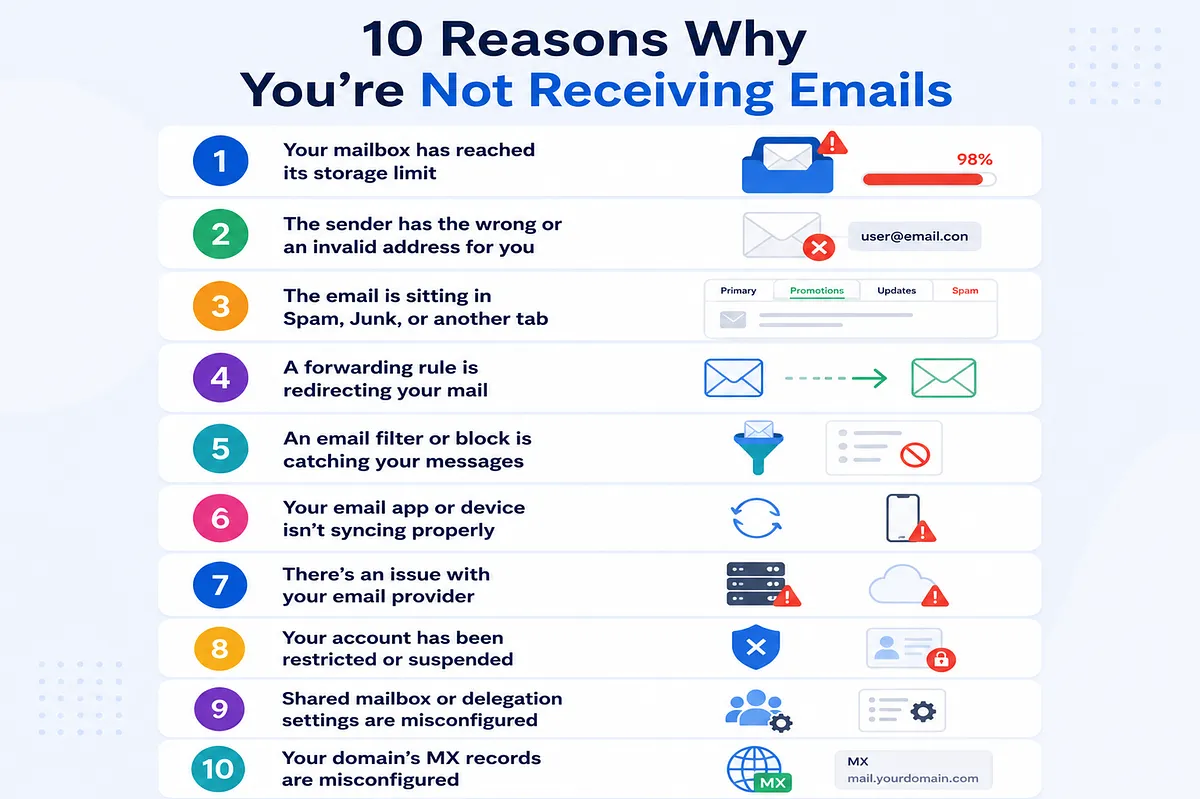
Most missing emails can be traced to an issue with your mailbox, account, email app, or receiving environment. Start with these checks before assuming the sender is responsible.
1. Your mailbox has reached its storage limit
Every mailbox has a storage limit. Once you reach it, your email provider stops accepting new messages until the space is available again. Depending on the provider, senders may receive a bounce notification saying the mailbox is over quota, while on your end it simply looks like new emails have stopped arriving.
For example, Gmail's storage quota is shared across Gmail, Google Drive, and Google Photos. Even if your inbox contains relatively few messages, a full Drive or Photos library can prevent new emails from being received.
How to fix it:
Check your account's storage usage before troubleshooting anything else.
- In Gmail, you can view it at the bottom of your inbox or from your Google Account storage page.
- In Outlook.com, go to Settings → General → Storage. Delete large attachments, empty your Trash and Spam folders, and free up space in any service that shares your storage quota.
Once you're back under the limit, your provider can begin accepting new mail again.
2. The sender has the wrong or an invalid address for you
If the sender is using the wrong email address, the message will never reach your inbox. A single typo, an outdated work address, an expired alias, or a missing character is enough to send the email somewhere else or cause it to be rejected before delivery.
This is one of the easiest issues to overlook because nothing appears wrong on your side. Your inbox, settings, and internet connection may all be working normally, but the email simply isn't being sent to an address that belongs to you.
How to fix it:
Ask the sender to verify the address they're using, character by character. Make sure they're not using an old address, a disabled alias, or a forwarding address that no longer exists. If they received a bounce message, ask them to share the error.
Messages such as "user unknown," "recipient not found," or "address does not exist" usually confirm that the problem is an invalid recipient address rather than your inbox.
3. The email is sitting in Spam, Junk, or another tab
Mailbox providers constantly evaluate incoming messages and decide where they belong based on factors such as sender reputation, authentication, recipient engagement, and message content. Legitimate emails can end up in Spam or Junk, especially if they're from a new sender or one with a poor sending reputation.
Many providers also organize incoming mail into different categories. Marketing emails, newsletters, receipts, and automated notifications often appear in tabs such as Promotions or Updates instead of your primary inbox, making them easy to overlook.
How to fix it:
Check your Spam or Junk folder, then search the other inbox tabs if your email provider uses them. If you find the message, mark it as Not spam or move it to your primary inbox. Adding the sender to your contacts or safe-senders list also helps your provider recognize future emails from that sender as legitimate.
4. A forwarding rule is redirecting your mail
Email forwarding automatically sends incoming messages to another address. If forwarding was enabled previously during an account migration, by an administrator, or simply because you set it up and forgot about it, your emails may be leaving your inbox as soon as they arrive.
Some forwarding rules keep a copy in your mailbox, while others remove the original after forwarding it. In the latter case, it can look as though the email never arrived at all.
How to fix it:
Review your forwarding settings to see whether forwarding is enabled.
- In Gmail, go to Settings → Forwarding and POP/IMAP.
- In Outlook, check your Forwarding and Rules settings.
Disable forwarding you no longer need, and confirm that messages aren't being forwarded to an old or incorrect email address.
5. An email filter or block is catching your messages
Filters (sometimes called rules) automatically process incoming emails based on conditions you define. They can move messages into folders, archive them, mark them as read, or even delete them before you ever see them. A filter that was useful at one point can become too broad over time and start catching legitimate emails.
Blocked sender lists can produce the same result. If you previously blocked an address or domain, messages from that sender may be rejected or sent directly to Spam without any notification.
How to fix it:
Review your filters and blocked sender lists for anything that could be affecting the missing emails.
- In Gmail, check Settings → Filters and Blocked Addresses.
- In Outlook, review your Rules and Junk Email → Blocked Senders settings.
Remove or update filters that are catching legitimate messages, and unblock any sender you now want to receive email from.
6. Your email provider is experiencing an outage
Sometimes your email provider may be experiencing an outage or temporary service disruption that affects incoming mail.
Check your provider's service-status page for reported incidents. If other users are experiencing the same problem, wait for the provider to resolve the issue rather than changing your account settings.
How to fix it:
Check the provider's status page and retry delivery once the incident is resolved. If the outage has ended but you're still not receiving mail, continue troubleshooting your account and ask the sender to resend the message.
7. Your email app isn't synchronizing with the server
An email may have arrived successfully but not appear in the app you're using to read it. This can happen when an IMAP connection fails, an account needs to be re-authenticated, or a client has stopped syncing.
How to fix it:
Open your mailbox through your provider's webmail interface. If the missing message appears there, your account is receiving mail and the problem is with the email client.
Re-authenticate the account, check its IMAP settings, and make sure synchronization is enabled. If you're using multiple devices, check whether the message appears on another connected device.
8. Your account has been suspended, disabled, or restricted
An account can stop receiving email if the provider or administrator has suspended, disabled, or restricted it. This is more common with work or school accounts, where an administrator can change account access without changing anything on your device.
How to fix it:
Try signing in through webmail. Check for account warnings or administrator messages, and contact your organization's IT administrator if it's a managed account. For personal accounts, check whether the provider has placed any restrictions on the account.
Shared mailboxes: If the problem affects a shared mailbox rather than your individual account, check whether you still have permission to access it and whether the mailbox has reached its quota. An administrator may need to verify access, licensing, or mailbox configuration.
9. Your organization is quarantining the message
Work and school email systems often use security gateways that inspect incoming messages before they reach your inbox. A message can be accepted by the organization's mail system but placed in a quarantine area because of its sender, attachment, URL, content, or security policy.
How to fix it:
Check your organization's quarantine or security portal if you have access to it. Otherwise, contact your IT administrator and provide the sender's address, recipient address, approximate sending time, and subject line. The administrator can determine whether the message was quarantined or rejected by a corporate security filter.
10. The message is too large to be accepted
Email providers and corporate mail systems impose limits on message size, including attachments. If a message exceeds the recipient's limit, the receiving server may reject it and the sender will usually receive a bounce explaining the problem.
How to fix it:
Ask the sender to reduce the attachment size or share the file through a cloud-storage service instead. If you're sending the message yourself, check your provider's message-size limit before resending.
How To Test If You're Receiving Emails
If you've checked your mailbox and still aren't receiving a specific email, the next step is to determine whether the problem affects your inbox generally or only messages from a particular sender.
The quickest way to find out whether the problem is your inbox or a specific sender is to perform a simple delivery test. Send yourself an email from a different account on a different email provider, for example, send from a Gmail account to Outlook, or vice versa.
Avoid sending from the same account you're troubleshooting, as internal delivery may succeed even when external email isn't arriving, giving you a false sense that everything is working.
Most email is delivered within a few seconds, but waiting 10–15 minutes accounts for temporary delays caused by network congestion or provider-side processing.
What the result tells you:
- The test email arrives: Your mailbox is accepting new mail. The problem is likely limited to a specific sender, an email filter, a blocked address, or an incorrectly typed recipient address.
- The test email doesn't arrive: The issue is probably broader and affects all incoming mail. Check your mailbox storage, forwarding rules, filters, account status, and internet connection before looking elsewhere.
It's also worth opening the same mailbox in your provider's webmail interface, not just your phone or desktop email client. If the email appears in webmail but not in your app, the problem is synchronization.
Common causes include an IMAP or POP configuration issue, an expired app password, or an email client that needs to be re-authenticated after enabling multi-factor authentication.
How To Know If The Issue Is On Your Side Or The Sender's Side
If you're an individual trying to receive an email, your first priority is determining whether the problem affects your mailbox or only one sender.
- If no emails are arriving: Check your mailbox storage, account status, provider outage, synchronization, forwarding rules, filters, and, if you're using a custom domain, MX records.
- If only one sender is affected: Your inbox may be working normally. Check your Spam folder, filters, and blocked senders, then ask the sender whether they received a bounce or rejection message.
A bounce usually means the receiving server rejected the message before delivery. The error can point to an invalid recipient address, a full mailbox, message-size limits, or a problem with the sender's email infrastructure.
If you're using a custom business domain and nobody at the domain is receiving email, have the domain administrator verify the domain's MX records and mail-routing configuration. Incorrect, missing, or outdated MX records can prevent incoming mail from reaching the correct mail server.
The answer determines who needs to fix the problem. Start by looking at the pattern rather than the missing message itself.
- If no emails are arriving, the problem is usually on your side. A full mailbox, an account issue, a forwarding rule, a filter, or a synchronization problem can prevent all incoming mail from appearing.
- If you're only missing emails from one sender or one service, your inbox is probably working normally. In that case, the issue is either a filter or block affecting that sender, or a problem with their email setup.
Another useful clue is whether the sender received a bounce message. A bounce means the receiving server rejected the email before it could be delivered. Common reasons include an invalid recipient address, a mailbox that's over quota, or problems with the sender's authentication or sending reputation.
If the sender didn't receive a bounce and you've already checked Spam, forwarding, and filters, the message may have been accepted by the receiving provider but filtered before it reached your inbox. In some cases, the sender's infrastructure may also have failed before delivery without generating an obvious error.
You can fix issues such as storage limits, forwarding rules, inbox filters, blocked senders, and synchronization problems from your own account. You can't fix problems caused by the sender's email infrastructure, such as failed or misaligned SPF, DKIM, or DMARC authentication, a poor sender reputation, or provider-level filtering before the message reaches your mailbox.
If Your Customers Aren't Receiving Your Emails
If you're a business owner, marketer, or IT team and your customers aren't receiving your emails, the troubleshooting process is different. Your mailbox may be working perfectly while your messages are being rejected, filtered, or routed to Spam at the recipient's provider.
A message appearing in your Sent folder only confirms that your system attempted to send it. It doesn't tell you whether the recipient's provider accepted the message, placed it in Spam, quarantined it, or rejected it.
Check these areas:
- Verify the recipient address: Confirm that you're sending to the correct address and check for bounce messages indicating an invalid or nonexistent recipient.
- Check SPF, DKIM, and DMARC: Make sure your domain is correctly authenticated and that SPF or DKIM aligns with your visible From domain. Authentication problems can cause receiving providers to reject or filter messages.
- Check sender reputation: Review bounce rates, spam complaints, sending patterns, and domain or IP reputation. A poor reputation can affect inbox placement even when authentication passes.
- Check blocklist status: A blocklist listing can affect delivery, but the impact varies by provider and by the specific blocklist. Check listings as one part of a broader reputation investigation rather than assuming any listing will affect every recipient. Mailora's email blocklist checker monitors IPs and domains across 40+ blocklists, helping identify potential reputation issues that may warrant further investigation.
- Test inbox placement: Don't rely only on delivery or bounce data. Test where your messages actually land across providers such as Gmail, Outlook, and Yahoo. A message can be accepted by a provider but still land in Spam or another filtered folder.
- Check sending infrastructure: Review recent DNS changes, DKIM key rotations, sending-platform changes, SMTP errors, and other infrastructure changes that could affect delivery.
How To Prevent Email Delivery Issues Going Forward
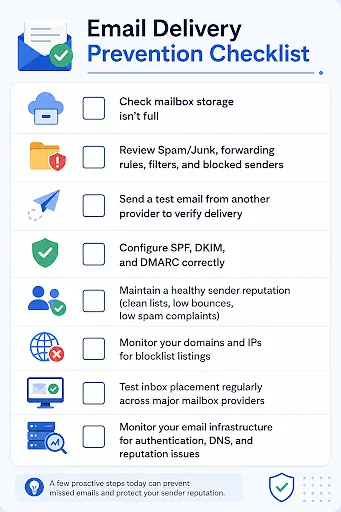
If you're receiving email, the checks above can help you identify problems with your mailbox. If you're sending email to customers, preventing delivery issues requires ongoing monitoring of your authentication, reputation, infrastructure, and inbox placement.
Before assuming the problem is with the sender, check your mailbox storage, Spam or Junk folder, forwarding rules, filters, and blocked senders. If you're still unsure, send yourself a test email from a different provider to confirm whether your inbox is receiving mail normally.
If those checks don't uncover the problem, the issue is likely outside your inbox. At that point, the sender needs to investigate their email setup rather than asking you to change your settings again.
If you send email yourself, whether it's transactional emails, marketing campaigns, or customer communications, preventing delivery problems requires ongoing attention to your sending infrastructure.
- Authenticate your domain correctly: Configure SPF, DKIM, and DMARC, and make sure your authenticated domains align with the visible From address. Authentication establishes trust, while alignment helps mailbox providers verify that the sender is legitimate.
- Protect your sender reputation: Send only to engaged recipients, remove invalid addresses, monitor bounce rates, and keep spam complaints low. Mailbox providers rely heavily on sender reputation when deciding whether an email belongs in the inbox or Spam.
A blocklist listing can affect email delivery, but its impact depends on the specific blocklist, the provider, and how that provider uses the listing in its filtering decisions. A listing may affect some recipients while having little or no measurable impact on others. Mailora's email blocklist checker monitors your IPs and domains across 40+ blocklists, helping you identify potential reputation issues before they become broader deliverability problems.
- Test inbox placement regularly: A message marked as "sent" or even "delivered" isn't necessarily in the inbox. Testing across providers such as Gmail, Outlook, and Yahoo shows where your emails actually land.
- Monitor your email setup over time: Email infrastructure changes constantly. A rotated DKIM key, a new sending platform, an expired DNS record, or a drop in reputation can affect inbox placement without generating an obvious error. Regular monitoring helps you identify these issues before they impact customers.
For recipients, these steps reduce the chances of missing important emails. For senders, they help prevent those emails from going missing in the first place.
Mailora brings these checks together in one place by monitoring your email authentication, sender reputation, and inbox placement across major mailbox providers. Instead of waiting for customers to report missing emails, you can identify delivery issues early and verify where your messages are actually landing.
Run your first deliverability test with Mailora.
FAQs
Why am I suddenly not receiving emails when nothing on my end changed?
Something usually did change quietly, your storage crossed its limit, a filter or forwarding rule started acting on new mail, or a third-party app lost access after a password or two-factor change. A provider outage can also pause delivery for a few hours. Work through storage, spam, filters, and forwarding first.
Why am I not receiving emails from one specific sender?
Missing mail from a single sender points to one of two things: a filter or block on your side, or a delivery problem on theirs. Check your Spam folder, filters, and blocked-senders list first. If those are clear, ask the sender whether they received a bounce, that tells you the message was rejected rather than misfiled.
My mailbox isn't full and it's not in spam, where are my emails going?
Check for a forwarding rule or a filter quietly redirecting or deleting incoming mail, since neither leaves an error. If nothing on your side is catching it, the message may not be reaching your provider at all, a sending-side problem the sender has to fix.
A sender says they emailed me, but I never got it. What happened?
Either the message was filtered or blocked on your side, or it never arrived because of the sender's setup. Ask whether they got a delivery error. A bounce means it was rejected, often a wrong address or the sender's authentication or reputation. No bounce, and it's not in your Spam, points to silent filtering or a sending-side failure.
If I run a business, why aren't my customers receiving my emails?
This is a deliverability problem, not an inbox one, and you can't see it from your sent folder. Your mail may be authenticated but still filtered to spam, or rejected outright, because of authentication alignment, sender reputation, or provider-level filtering. Testing where your mail lands and monitoring your authentication over time is how you find and fix it.
Stay in the loop
Deliverability insights, product updates, and early access to new features. No spam, unsubscribe anytime.
By subscribing, you agree to our Privacy Policy. Unsubscribe anytime.