What Does a Queued Email Mean? Causes, Fixes, and Prevention
Key Takeaways
- A queued email is waiting for processing or a sending attempt; it does not automatically mean delivery has failed.
- Internet connectivity, server congestion, attachment sizes, and sending limits are common causes.
- SMTP 4xx responses generally indicate temporary errors that may be retried.
- Queued, deferred, sent, and delivered describe different stages of email processing.
- A queued message does not automatically mean it has been marked as spam.
- Businesses should monitor authentication, sender reputation, delivery errors, and inbox placement to identify recurring problems.
Have you ever sent an email and noticed that its status says "Queued" instead of "Sent"? Whether you're using Gmail, Outlook, or a business email platform, this status can be confusing, especially when the message contains an important customer update or business communication.
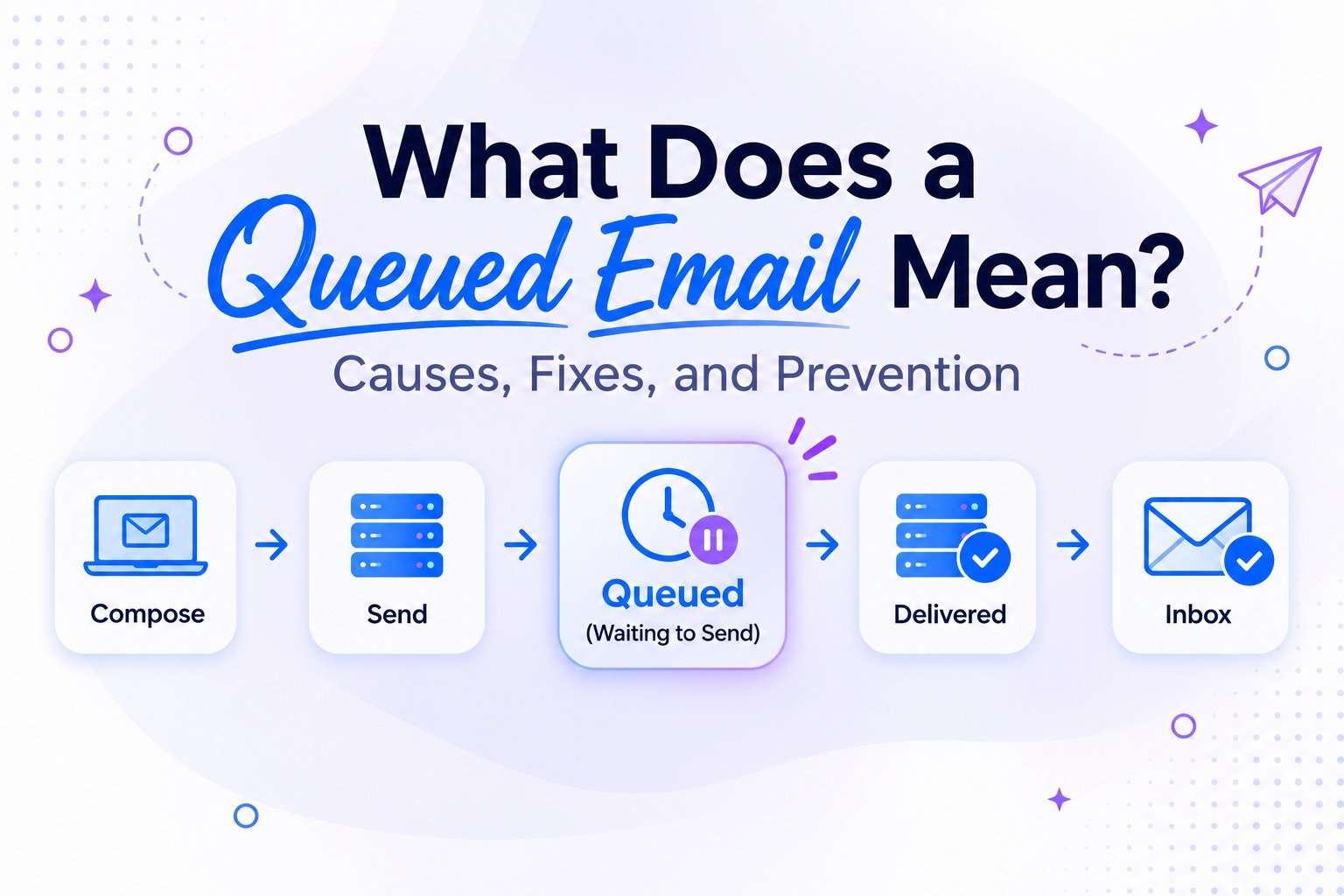
What does a queued email mean? It means your message is waiting to be processed or sent by your email application or mail server. It has not necessarily reached the recipient's mail server yet.
A queued email can result from an unstable internet connection, temporary SMTP errors, server congestion, sending restrictions, or synchronization problems. Understanding where the message is waiting is the first step toward fixing it.
What Happens When an Email Is Queued?
When you click Send, your email usually passes through several stages before reaching the recipient.
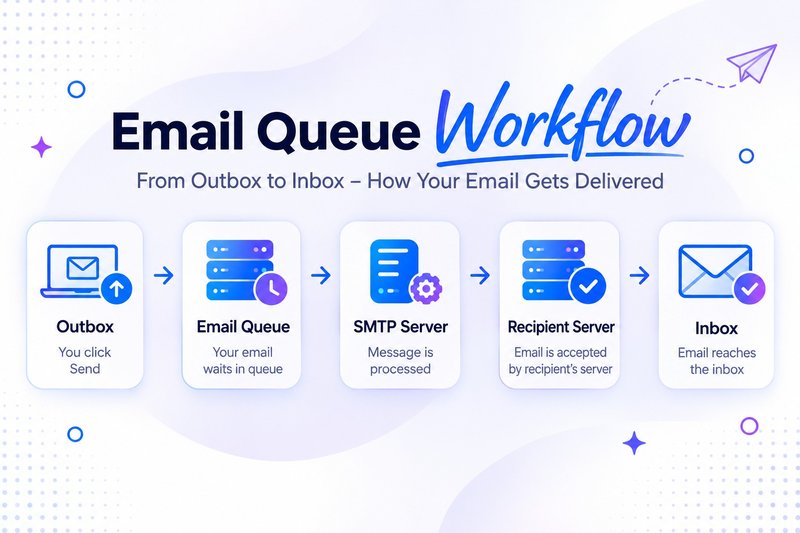
- Composition: You write the message, add recipients, and attach files.
- Submission: Your email application submits the message to an outgoing mail server.
- Queue processing: The sending system temporarily holds the message while preparing or attempting delivery.
- SMTP communication: The sending server communicates with the recipient's mail server.
- Server acceptance: The recipient's server accepts the message for further processing.
- Inbox placement: The receiving provider determines where the message should appear, such as the inbox or spam folder.
A message can be queued locally in an application's Outbox or held by a sending server while it retries delivery. These are different situations and require different troubleshooting methods.
For a deeper explanation, read What Actually Happens After You Hit Send.
Why Is My Email Queued? 6 Common Reasons
A queued email can have several causes depending on your email application, sending infrastructure, and recipient's mail server.
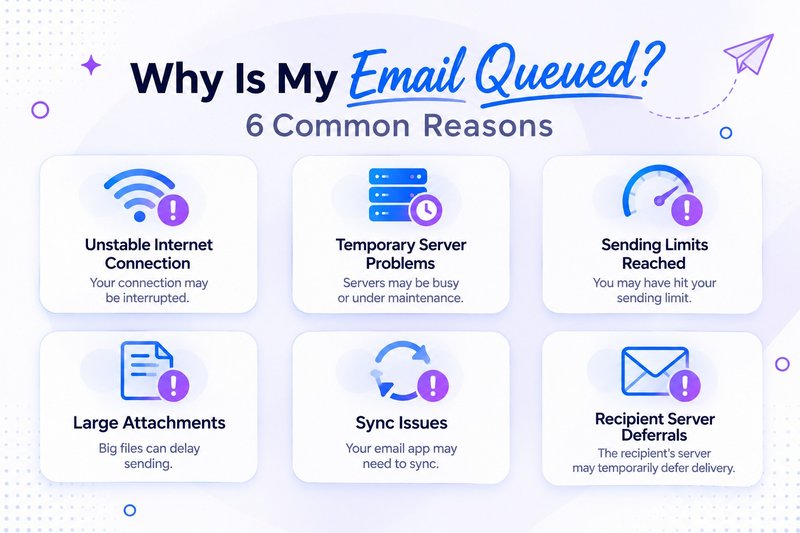
1. Unstable Internet Connection
An unreliable Wi-Fi or mobile data connection can prevent your email application from communicating with its outgoing mail server.
The message may remain in your Outbox until connectivity is restored.
How to fix it:
- Check your internet connection.
- Switch between Wi-Fi and mobile data.
- Refresh or restart your email application.
- Try sending a small test message.
2. Temporary Email Server Problems
Email servers occasionally experience maintenance, congestion, or connection failures. When a sending server cannot complete a delivery attempt, it may retain the message and retry later.
SMTP response codes help identify these problems:
| 421 | Service temporarily unavailable |
| 450 | Mailbox or delivery operation temporarily unavailable |
| 451 | Temporary processing error |
| 452 | Insufficient server resources or capacity |
Under RFC 5321, SMTP 4xx responses indicate temporary negative completion conditions. Sending systems generally retry these messages according to their configured retry policies.
How to fix it: Check your provider's service status and review SMTP logs if you manage your own mail server. Allow the sending system to retry rather than repeatedly resending the same message.
3. Sending Limits Have Been Reached
Email providers enforce sending limits to manage traffic and prevent abuse.
If your account exceeds its permitted sending volume or sends too many messages in a short period, additional messages may be delayed or restricted.
This is particularly relevant to businesses sending newsletters, promotional campaigns, and transactional notifications.
How to fix it:
- Review your provider's sending limits.
- Distribute bulk campaigns over appropriate intervals.
- Avoid sudden increases in sending volume.
- Monitor SMTP rate-limit responses.
4. Large Email Attachments
Large PDFs, videos, and high-resolution images can increase upload and processing times. Some providers also enforce maximum message-size limits.
How to fix it:
- Compress large files.
- Remove unnecessary attachments.
- Share files through secure cloud links.
- Check your provider's attachment restrictions.
5. Email Application Synchronization Problems
Applications such as Gmail, Outlook, and Apple Mail rely on synchronization to communicate with email servers.
Outdated applications, background restrictions, authentication problems, or synchronization failures can prevent messages from leaving the Outbox.
How to fix it:
- Refresh your mailbox.
- Check synchronization settings.
- Update the application.
- Verify outgoing SMTP settings where applicable.
- Try sending through your provider's web interface.
If the message sends through webmail but not your desktop application, investigate the local application or device.
6. Recipient Server Deferrals and Authentication Issues
Sometimes the problem occurs after your sending server attempts to contact the recipient's server.
The recipient may temporarily defer a message because of traffic limits, reputation concerns, or other server policies.
For business senders, incorrect SPF, DKIM, or DMARC configuration can also contribute to authentication-related delivery problems. These failures do not automatically cause queuing, but they can lead to rejection or other delivery complications depending on the receiving provider.
How to fix it:
- Validate SPF records.
- Confirm DKIM signatures are working.
- Review DMARC alignment.
- Check sender IP and domain reputation.
- Investigate repeated SMTP deferrals.
Read Mailora's Email Deliverability Checklist for High-Volume Senders for a more comprehensive technical review.
How to Fix a Queued Email: 5 Troubleshooting Steps
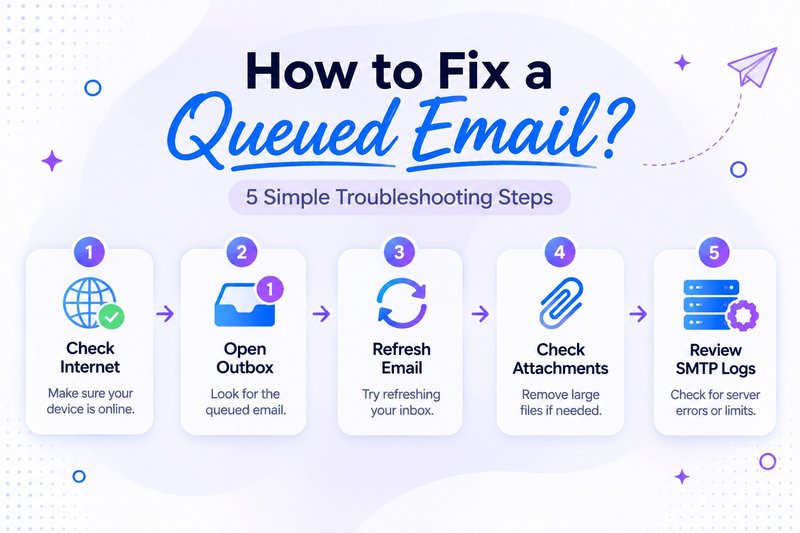
If your message remains queued, follow these steps before attempting to send it again.
| 1 | Check your internet connection | Connectivity problems |
| 2 | Open your Outbox | Locally queued messages |
| 3 | Refresh your email application | Synchronization failures |
| 4 | Check attachment and sending limits | Upload or provider restrictions |
| 5 | Review SMTP logs and error codes | Server-side delivery problems |
Important: Avoid repeatedly resending the same message. If the original message is already being processed, you could create duplicate emails.
For server administrators, inspect the message queue, last delivery attempt, recipient domain, retry status, and SMTP response.
Queued vs. Deferred vs. Sent vs. Delivered Email
These statuses describe different stages of email processing.
| Queued | Waiting for processing or a sending attempt |
| Deferred | Delivery was temporarily delayed and may be retried |
| Sent | The sending application or service completed its sending operation |
| Delivered | The recipient's mail server accepted the message |
| Bounced | Delivery failed and the sender received or can access a failure notification |
One distinction matters particularly for email marketers: a delivered email is not necessarily an inboxed email.
A receiving server may accept a message and subsequently place it in spam or another folder. Understanding this difference is essential when evaluating campaign performance.
Explore Inbox Deliverability: Why "Delivered" Isn't Inboxed to understand the difference.
Does a Queued Email Mean It Is in Spam?
No. A queued email does not automatically mean your message has been classified as spam.
Queuing generally relates to message processing or transmission, while spam filtering determines how receiving providers handle messages.
However, there can be an indirect relationship. For example, a sender with poor IP reputation may experience temporary rate limiting or deferrals from certain receiving providers.
If your business emails repeatedly experience delays, monitor:
- SPF, DKIM, and DMARC authentication.
- Sender IP and domain reputation.
- SMTP response patterns.
- Bounce and deferral rates.
- Inbox and spam folder placement.
Mailora's email spam filtering guide explains how mailbox providers evaluate incoming messages.
How Mailora Helps You Identify Email Deliverability Problems
For businesses and email marketers, fixing a queued message is only one part of maintaining reliable email communication.
Recurring deferrals, authentication failures, and declining inbox placement can indicate broader issues with your sending infrastructure.
Mailora helps email professionals move beyond basic sending statuses and understand the signals influencing email deliverability.
Its capabilities include:
- Automated Monitoring: Schedule recurring deliverability tests and monitor performance over time.
- Postmaster Insights: Connect Google Postmaster data to review domain health, IP reputation, and delivery errors.
- Multi-Variant Testing: Test five email variations to identify content elements that may be affecting inbox placement.
- Detailed Analysis: Review inbox placement, spam analysis, blacklist checks, and SPF/DKIM/DMARC validation.
- Deliverability Analytics: Analyze historical trends and provider-level performance.
Mailora does not replace SMTP queue monitoring or server-log analysis. It complements those workflows by helping identify broader deliverability risks.
If you're experiencing recurring email performance issues, check Mailora's email deliverability features.
Explore Mailora and run your first free email deliverability test.
Frequently Asked Questions
1. How long does an email stay queued?
There is no universal time limit. It may remain queued for seconds, minutes, or longer, depending on the email application, server conditions, and retry policy.
2. Will a queued email eventually be sent?
It may be sent automatically if the underlying problem is temporary and gets resolved. Persistent or permanent errors can eventually cause delivery failure.
3. Does a queued email mean the recipient has received it?
No. A queued status does not confirm that the recipient's mail server has accepted the message.
4. Why are my Gmail emails stuck in the Outbox?
Common reasons include connectivity problems, synchronization failures, large attachments, and account restrictions. Check your connection, refresh Gmail, and try the web interface.
5. Can I delete a queued email?
You may be able to delete it if it is still waiting locally in your Outbox. However, deleting a local copy may not cancel a message already accepted by the sending server.
6. Can poor sender reputation cause queued emails?
Yes, indirectly. Receiving providers may temporarily defer messages from senders with reputation problems. Check SMTP responses before identifying reputation as the cause.
7. Should I resend a queued email?
Not immediately. First, confirm whether the original message is still being processed to avoid duplicate delivery.
Final Thoughts
Understanding what a queued email means helps you distinguish temporary sending delays from more serious delivery problems.
The right solution depends on where the message is waiting, whether the issue is local or server-side, and what the SMTP response reveals.
For businesses, reliable email communication requires more than checking whether messages have been sent. Monitoring authentication, reputation, delivery responses, and inbox placement provides a clearer picture of overall email performance.
With Mailora, you can test, monitor, and analyze deliverability signals to identify potential problems and make more informed sending decisions.
Explore Mailora and run your first email deliverability test for free.
Stay in the loop
Deliverability insights, product updates, and early access to new features. No spam, unsubscribe anytime.
By subscribing, you agree to our Privacy Policy. Unsubscribe anytime.