Gmail SMTP Configuration: Setup, Ports & Deliverability Fix Guide
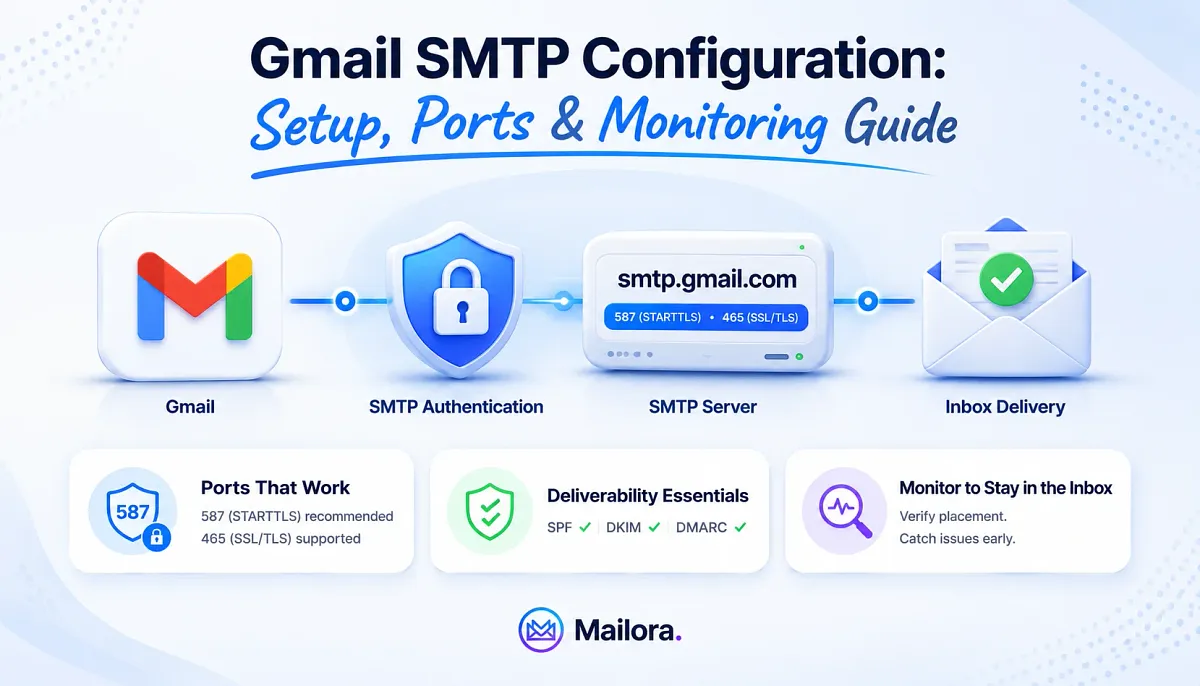
Key Takeaways
|
Introduction
Most Gmail SMTP guides hand you a server address, a port number, and a "you're all set," then they stop, and for a while, it looks like they were right. The connection authenticates, the test message sends, the log says 250 OK. Every signal points to success.
A campaign quietly lands in spam, opens flatten, and you go back to the configuration looking for the mistake, except there isn't one. The settings are correct, and the SMTP handshake worked exactly as designed.
The problem is that "Google accepted the message" and "the message reached the inbox" are two different outcomes, and the gap between them is where most senders get caught.
This guide covers both halves. First, the exact settings, including the server address, the ports, the authentication steps, and the sending limits you need to send through Gmail or Google Workspace.
Then the part the other guides skip about how to verify your configuration is actually producing inbox placement, and how to keep it that way once the campaigns are running.
What is Gmail SMTP and How Does it Work?
Gmail SMTP is Google’s outgoing mail service that lets applications, devices, websites, and email clients send emails through Gmail’s servers using the Simple Mail Transfer Protocol (SMTP).
It handles message submission, authentication, encryption, and delivery routing so emails can move securely from the sender to the recipient’s mail server. Gmail SMTP supports standard ports like 587 for TLS and 465 for SSL, and it can authenticate users with passwords, app passwords, or OAuth 2.0.
Businesses and individuals commonly use Gmail SMTP to send transactional emails, contact form messages, alerts, and personal email from third-party applications while benefiting from Google’s infrastructure, spam filtering, and delivery reliability.
There are three ways to make that handoff, and which one applies depends on your account and your use case:
- Standard Gmail SMTP (`smtp.gmail.com`): for sending from an individual Gmail or Google Workspace mailbox, the default for most apps, plugins, and clients.
- Google Workspace SMTP relay (`smtp-relay.gmail.com`): a server-level relay for Workspace organizations sending higher volumes, configured by an admin in the Google Admin console.
- Restricted Gmail SMTP (`aspmx.l.google.com`, port 25): for sending to Google Workspace recipients only, with no authentication, typically used by on-network devices like scanners and internal applications.
However, configuration is only part of the process. A successful SMTP setup simply means Gmail accepted your message and agreed to relay it. It does not guarantee the email actually reached the inbox because they can still land in spam, get filtered, throttled, or quietly disappear from engagement without any visible error.
That’s why configuration without verification is incomplete. If you are not actively monitoring where your emails land, you are operating on assumptions, and most teams only discover a deliverability problem after open rates drop, campaigns underperform, or critical emails go unseen.
Gmail SMTP Server Settings: Ports, Protocols, and Authentication
Before sending email through Gmail SMTP, you need the right server details, encryption method, and authentication setup. Understanding how these settings work together helps prevent connection failures, authentication errors, and delivery issues later on.
| Setting | Standard Gmail SMTP | Notes |
| Server address | `smtp.gmail.com` | Same for Gmail and Workspace user-level sending |
| Port 587 | STARTTLS (recommended) | Connection starts plain, upgrades to TLS, the modern standard |
| Port 465 | SSL/TLS | Encrypted from connection open. Still fully supported |
| Port 25 | Restricted SMTP only | Workspace-to-Workspace delivery. Blocked by most ISPs for general sending |
| Username | Full email address | e.g. `you@yourdomain.com`, not just the local part |
| Password | App password or OAuth 2.0 token | Basic password login is deprecated for most accounts |
| Authentication | Required | Gmail will not relay anonymous mail on 587/465 |
For most Gmail SMTP setups, Port 587 is the one you should use. It’s the modern standard and works with STARTTLS, which means the connection starts normally and then switches to an encrypted channel before your login details are sent.
Port 465 does almost the same thing, except the encryption starts immediately from the beginning of the connection.
In practical terms, both are secure. The reason 587 is recommended almost everywhere is because it’s the official email submission port and is supported by nearly every app, plugin, and email client by default. Port 465 is mostly there for older systems or specific applications that still rely on SSL connections.
As for Port 25, you can safely ignore it for normal sending. Most internet providers and cloud hosting platforms block outbound Port 25 to reduce spam abuse, so even if you configure it, there’s a good chance it simply won’t work reliably.
Most of the teams get confused during authentication. Your Gmail SMTP username is always your full Gmail address, but your password is usually not your normal Gmail login password. Google removed “Less Secure Apps” support years ago, so any guide asking you to enable that setting is outdated.
Today, Gmail SMTP authentication works in two supported ways:
- With a 16-character App Password or
- With OAuth 2.0 for more advanced integrations.
For most users, App Passwords are the simpler option and take only a few minutes to set up.
Teams on Google Workspace sending at higher volume use the SMTP relay service instead, which authenticates differently:
| Setting | Google Workspace SMTP Relay |
| Server address | `smtp-relay.gmail.com` |
| Ports | 587 / 465 (TLS), 25 (no TLS) |
| Authentication | By registered IP range, or SMTP AUTH with Workspace credentials, or both |
| Configured by | A Workspace admin in Admin console → Apps → Google Workspace → Gmail → Routing |
| Domain alignment | SPF and DKIM must authorize the relay for your domain |
Google’s SMTP relay is built for a different use case than regular Gmail SMTP. Instead of sending mail from one person’s mailbox, it’s designed for organization-wide sending from apps, servers, printers, CRMs, and internal systems. It’s managed at the admin level, comes with different authentication and routing rules, and isn’t something you can simply swap in place of standard Gmail SMTP.
How to Generate a Gmail App Password for SMTP
If your app, plugin, website, or script doesn’t support OAuth, a Gmail App Password is usually the easiest way to connect to Gmail SMTP securely. Instead of using your actual Google account password, Google generates a separate 16-character password specifically for SMTP authentication.
Before you start, make sure 2-Step Verification is already enabled on your Google account. Without it, the App Passwords option will not appear at all.
Here’s how to generate one:
- Open your Google Account and go to Security.
- Select 2-Step Verification.
- Scroll down and click App passwords.
- Under App, choose Mail.
- Select a device or enter a custom name like “WordPress SMTP” or “CRM Mailer.”
- Click Generate.
- Google will display a 16-character password. Copy it immediately because it’s only shown once.
- Paste that password into your SMTP application as the SMTP password (without spaces).
Two things commonly confuse people here. First, if you cannot find the App Passwords option, it usually means 2-Step Verification is not enabled yet. In Google Workspace environments, it can also mean the administrator has disabled App Passwords for the entire organization.
Second, some Workspace security policies block App Passwords completely. In those cases, OAuth 2.0 becomes the only supported authentication method. That’s also the direction Google continues to push toward, especially for long-term or automated sending setups.
OAuth 2.0 Authentication for Gmail SMTP
OAuth 2.0 is mainly used for long-term, automated sending setups, like WordPress SMTP plugins, CRMs, SaaS platforms, booking systems, and custom applications that send emails continuously in the background. Instead of storing your actual Gmail password, the application gets permission to send mail through secure access tokens controlled by Google.
You do not need to build the integration yourself to understand what’s happening. As an email marketer or admin, it’s enough to recognize the moving parts behind the setup. At a high level, the process usually looks like this:
- Create a project inside Google Cloud Console.
- Enable the Gmail API for that project.
- Generate OAuth credentials (a Client ID and Client Secret).
- Complete Google’s permission flow once so the app receives a refresh token.
- The app then uses that refresh token to continuously generate temporary access tokens for sending mail.
This sounds more complicated than App Passwords, but it’s also more secure and much better suited for applications that need ongoing access over months or years.
However, OAuth tokens expire regularly. Access tokens typically last about an hour before they need to be refreshed automatically in the background. If that refresh process breaks, or if Google revokes the refresh token because of a password reset, admin policy change, permission update, or security event, email sending can suddenly stop.
The application may not even show a visible error, especially if nobody is actively monitoring delivery logs. That’s why “it was working yesterday and suddenly stopped sending” is very often an OAuth token issue, not an SMTP settings issue.
Gmail SMTP Sending Limits You Need to Know
Gmail SMTP is not built for unlimited sending. Google applies daily limits, recipient caps, and rate controls to protect its infrastructure from spam and abuse. Understanding those limits early helps prevent blocked sends, temporary suspensions, and unexpected delivery interruptions later on.
| Limit | Standard Gmail SMTP | Google Workspace SMTP Relay |
| Messages per day | 2,000 | 10,000 |
| Recipients per message | 100 | 1,500 |
| On exceeding | Sending blocked ~24 hours | Throttling / rejection |
When you hit Gmail’s sending limits, the platform usually responds with a 421 or 550 SMTP error and may temporarily pause your ability to send email for several hours, sometimes up to a full day, and when that happens, campaigns stall, automations stop firing, and emails begin bouncing immediately.
For growing teams, those limits can arrive faster than expected. A company running multiple outbound sequences, onboarding flows, notifications, and support emails at the same time can push toward Gmail’s daily caps surprisingly quickly. That’s one of the reasons Google Workspace SMTP relay exists in the first place.
Mailbox providers pay attention to how your sending patterns change over time. If an account suddenly jumps from sending 200 emails a day to 1,800 overnight, that spike becomes a reputation signal, even if you technically stayed under Google’s official limits.
In other words, staying within Gmail’s sending quota only keeps the mail flowing. It does not guarantee inbox placement. Deliverability depends just as much on consistency, reputation, engagement, and sending patterns as it does on raw sending volume.
Common Gmail SMTP Errors and What They Actually Mean
SMTP response codes are where troubleshooting either gets fast or goes in circles. Gmail returns a numeric code plus an enhanced status code (the `5.7.1`-style suffix). Here’s a quick breakdown of what this status code means
| Code | What it means | Most likely cause | Fix |
| `535 5.7.8` | Authentication failed | Wrong username/password, or main password used instead of an app password | Generate an app password or switch to OAuth 2.0; use the full email as username |
| `534 5.7.9` | App-specific password required | 2FA account being accessed without an app password | Enable 2-Step Verification and generate an app password |
| `550 5.7.1` | Authentication required / policy rejection | Sender not authenticated, or blocked by a Workspace/sending policy | Verify authentication; check Workspace admin sending restrictions |
| `421 4.7.0` | Temporary rate limit | Too many messages or connections in a short window | Slow the send rate, add backoff/retry, spread volume over time |
| `452 4.5.3` | Too many recipients | Recipient count per message exceeded | Split the recipient list into smaller batches |
| `550 5.1.1` | User not found | Recipient address doesn't exist | Remove the address; verify recipients before sending |
Read them in groups rather than memorizing each one:
- Authentication failures (`535 5.7.8`, `534 5.7.9`, `550 5.7.1`): The credential or auth method is the problem. These are setup-side and fully in your control.
- Rate limiting (`421 4.7.0`): Temporary. Back off and retry. Don't keep hammering, which extends the block.
- Recipient issues (`550 5.1.1`, `452 4.5.3`): The address or the batch size is the problem, not your configuration.
- Policy blocks (`550 5.7.1` again): Workspace admin rules or sending policy, often invisible to the individual user hitting them.
A helpful rule of thumb: a 4xx SMTP error usually means “slow down and try again later.” A 5xx error means something is fundamentally wrong and will not resolve until you change the configuration, permissions, or sending behavior. And when the error mentions authentication, the problem is almost always tied to credentials, tokens, or account access settings, not Gmail itself.
Why SMTP Configuration Alone Doesn't Guarantee Inbox Placement
SMTP configuration alone does not guarantee inbox placement because SMTP only handles message submission and delivery handoff. A successful 250 OK response simply means Gmail accepted the email for sending.
After that point, mailbox providers like Gmail, Outlook, and Yahoo independently decide whether the message reaches the inbox, lands in spam, or gets filtered entirely.
That decision depends on factors beyond SMTP settings, including SPF, DKIM, and DMARC alignment, sender reputation, sending patterns, recipient engagement, and content quality. Even perfectly configured Gmail SMTP settings cannot overcome poor authentication alignment or a weak sending reputation.
Once the message leaves the SMTP layer, mailbox providers make their own placement decision based on three separate factors:
- Authentication and alignment: whether SPF, DKIM, and DMARC are properly configured and aligned.
- Sender reputation: the trustworthiness of your domain and sending infrastructure based on past behavior, complaints, and engagement.
- Content and engagement signals: how recipients interact with your emails and whether your sending patterns look trustworthy over time.
DMARC misalignment is one of the most common reasons Gmail SMTP emails fail to reach the inbox even when the SMTP setup itself is correct. SPF and DKIM can both pass individually, but DMARC also requires domain alignment, meaning the domain used in the visible “From” address must match the domain authenticated by SPF or DKIM.
This problem often appears when emails are sent through third-party platforms like CRMs, marketing tools, or plugins without properly updating DNS authentication records. The SMTP transaction still succeeds, but mailbox providers detect the alignment mismatch and may route the message to spam or reject it entirely.
Mailbox providers treat proper email authentication as a baseline requirement. Most large organizations already enforce DMARC policies beyond simple monitoring, and mailbox providers increasingly expect legitimate senders to have SPF, DKIM, and DMARC configured correctly and aligned properly.
At the same time, inbox placement remains far from guaranteed. A significant percentage of legitimate marketing emails still fail to reach the inbox because authentication, reputation, or engagement signals fall short. Correct Gmail SMTP settings alone cannot prevent that.
This is where deliverability testing becomes important. SMTP configuration only confirms that a message was accepted for sending. It does not verify whether SPF, DKIM, and DMARC align correctly or whether mailbox providers are actually placing your emails in the inbox.
That’s why the next step after configuring Gmail SMTP should always be validation. Testing your real sending setup helps identify authentication gaps, alignment problems, and deliverability risks before they begin affecting campaigns or transactional email performance.
Run your first deliverability test
How to Monitor Gmail SMTP Health Over Time
Gmail SMTP is not a “set it once and forget it” system. Even if you never touch the configuration again, the environment around it keeps changing, and those changes can quietly affect email delivery over time.
Common issues include:
- App Passwords getting revoked after account security changes
- OAuth tokens expiring or failing to refresh properly
- Sudden sending spikes triggering Gmail rate limits
- Sender or IP reputation declining over time
- SPF, DKIM, or DMARC records being modified accidentally
- Google tightening authentication and spam enforcement policies
The problem is that many of these failures do not immediately produce visible errors. Emails may continue sending while inbox placement drops, spam folder placement increases, or authentication alignment quietly breaks in the background.
That’s why ongoing SMTP monitoring matters. A healthy setup is about continuously verifying authentication status, sender reputation, bounce patterns, complaint rates, and inbox placement performance across providers.
For teams managing multiple domains, applications, or client accounts, monitoring becomes even more important because configuration drift is common. DNS records change, tokens expire, policies evolve, and deliverability can decline gradually without anyone noticing until campaigns begin underperforming.
The goal of SMTP health monitoring is not simply collecting technical data. It is identifying deliverability risks early enough to fix them before they impact marketing performance, transactional email reliability, or sender reputation.
Run a deliverability check on your current setup
Setting Up Gmail SMTP in Common Platforms
The core Gmail SMTP settings stay the same across almost every platform:
- SMTP server: smtp.gmail.com
- Port: 587
- Encryption: STARTTLS
- Username: your full Gmail address
- Password: App Password or OAuth 2.0 authentication
What changes from platform to platform is simply where those settings are entered and how authentication is handled.
WordPress (WP Mail SMTP)
In WordPress, plugins like WP Mail SMTP simplify the setup process. You can either use the dedicated Gmail mailer with OAuth or choose the standard SMTP option and enter the Gmail SMTP details manually. OAuth is more secure because it avoids storing a static password inside WordPress, but App Passwords are usually faster to configure.
Outlook
In Outlook, Gmail SMTP is configured as the outgoing mail server. The most common setup issue here is authentication because Gmail will reject the connection if you use your normal account password instead of an App Password or OAuth authentication.
Thunderbird
Thunderbird usually detects Gmail SMTP settings automatically during account setup. If auto-detection fails, you can manually configure Gmail SMTP using Port 587 with STARTTLS and authenticate using either an App Password or Thunderbird’s built-in OAuth support.
Programmatic Sending (Python, Apps, Scripts)
For scripts and applications, Gmail SMTP typically connects through smtp.gmail.com using Port 587 and TLS encryption. Many small applications use App Passwords initially, but production systems usually move toward OAuth 2.0 so credentials are not permanently hardcoded into the application.
Regardless of the platform, SMTP configuration only handles message submission. Authentication alignment, sender reputation, and inbox placement are still decided after the message leaves the SMTP layer.
Gmail SMTP Configuration Checklist
Before sending real campaigns, transactional emails, or automated sequences, make sure your Gmail SMTP setup checks all of these boxes:
- Gmail SMTP server configured correctly: smtp.gmail.com using Port 587 with STARTTLS (recommended) or Port 465 with SSL.
- Authentication method working properly: either a valid App Password or OAuth 2.0 authentication with active token refresh support.
- SPF configured correctly: your SPF record includes Google’s sending servers using include:_spf.google.com.
- DKIM enabled and signing mail: DKIM keys published in DNS and signing activated in Google Workspace.
- DMARC published and aligned: SPF or DKIM alignment matches the visible “From” domain.
- Sending limits understood: daily volume, recipient caps, and sending spikes managed carefully.
- Error and authentication monitoring enabled: revoked App Passwords, expired OAuth tokens, and SMTP failures detected early.
- Deliverability tested after setup: inbox placement verified across Gmail, Outlook, Yahoo, and other providers.
The first part of the checklist gets Gmail SMTP technically working. The second part confirms the emails are actually reaching the inbox consistently.
Mailbox providers require proper authentication and low complaint rates as part of standard sender compliance. A functioning SMTP connection alone is no longer enough to guarantee inbox placement.
Run your first deliverability test with Mailora to verify your Gmail SMTP setup end-to-end, authentication alignment, inbox placement, and the signals your SMTP logs will never show you.
Frequently Asked Questions
What is the Gmail SMTP server address and which port should I use?
Use smtp.gmail.com with Port 587 and STARTTLS for most setups. Port 465 with SSL/TLS also works for older clients. Use your full Gmail address as the username and authenticate with an App Password or OAuth 2.0, not your regular password.
How do I create an App Password for Gmail SMTP?
Go to Google Account → Security → 2-Step Verification → App Passwords. Select “Mail,” choose a device or custom name, and click Generate. Copy the 16-character password shown and use it as your SMTP password. App Passwords require 2-Step Verification to be enabled.
What are Gmail SMTP sending limits for personal accounts vs. Workspace?
Standard Gmail accounts allow about 2,000 emails daily. Google Workspace SMTP relay supports up to 10,000 per day. SMTP-based sending is also limited to 100 recipients per message. Exceeding limits can trigger 421 or 550 errors and temporarily pause sending.
Why are my emails going to spam even though Gmail SMTP is configured correctly?
A working SMTP setup only confirms Google accepted the message. Inbox placement depends on SPF, DKIM, DMARC alignment, sender reputation, engagement, and content quality. DMARC alignment failures are one of the most common reasons legitimate emails still land in spam.
How do I test whether my Gmail SMTP setup is actually reaching the inbox?
Run a deliverability test that checks SPF, DKIM, DMARC alignment and inbox placement across providers like Gmail, Outlook, and Yahoo. Sending a test email to yourself only confirms delivery, not whether mailbox providers trust your sending setup.
Stay in the loop
Deliverability insights, product updates, and early access to new features. No spam, unsubscribe anytime.
By subscribing, you agree to our Privacy Policy. Unsubscribe anytime.