Key Takeaways
|
Per RFC 7208, SPF evaluation stops after 10 DNS lookups. That single limit explains a surprising share of Microsoft 365 authentication problems, especially when teams keep adding ESPs, sales tools, ticketing platforms, and forwarding services to one record.
If you send from Microsoft 365, the goal is not to "have SPF, DKIM, and DMARC somewhere in DNS." The goal is to make sure Microsoft 365 and every other sender using your domain authenticate in a way that aligns with your visible From address, so Gmail, Outlook, Yahoo, and other receivers can make a consistent trust decision.
Here is the practical setup, what to publish, and where Microsoft 365 deployments most often go wrong.
What SPF, DKIM, and DMARC each do on Microsoft 365
| Protocol | What it checks | What Microsoft 365 needs | Where teams usually slip |
|---|---|---|---|
| SPF | Whether the sending IP is allowed for your domain | An SPF record that includes Microsoft 365 and any other sender using your domain | Too many lookups, duplicate SPF records, or missing third-party senders |
| DKIM | Whether the message was signed and stayed intact | Two selector CNAMEs per custom domain, then DKIM enabled in Microsoft 365 | Publishing CNAMEs but never turning signing on, or signing with the wrong domain |
| DMARC | Whether SPF or DKIM aligns with the visible From domain, plus reporting and policy | A DMARC TXT record on the From domain | Thinking SPF or DKIM alone is enough when alignment is missing |
The key decision is this: DMARC is the control plane. SPF and DKIM create signals, but DMARC decides whether those signals line up with the From domain your recipient sees in the inbox.
How to set up SPF on Microsoft 365
Start with the Microsoft 365 include
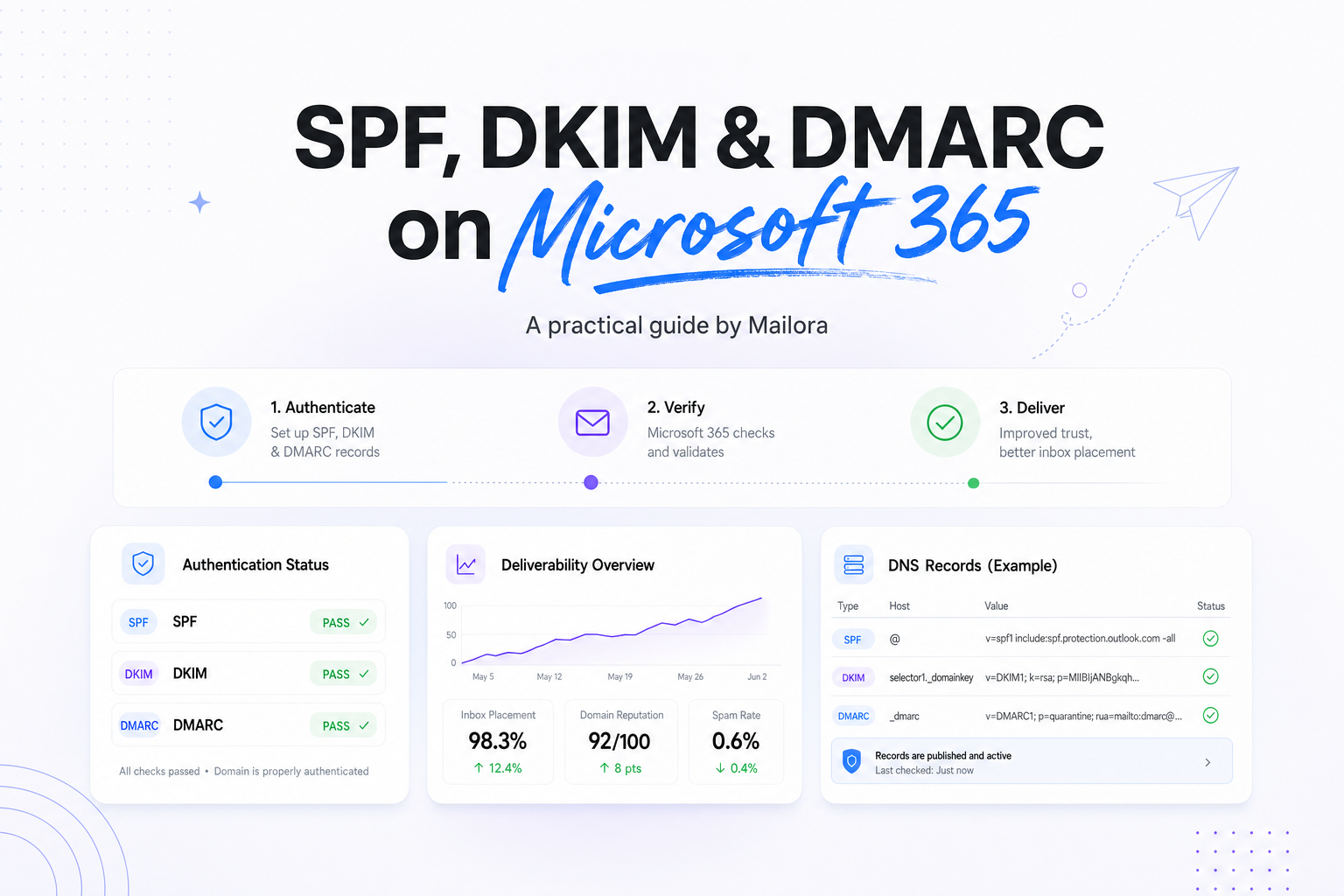
For a domain that sends through Exchange Online, your SPF record usually needs include:spf.protection.outlook.com. A common baseline looks like v=spf1 include:spf.protection.outlook.com -all.
That record is only correct if Microsoft 365 is the only system sending mail with that domain in the Return-Path or envelope-from. The moment marketing sends through another ESP, sales sequences come from a separate platform, or support mail leaves through a ticketing tool, your SPF design changes.
Keep it to one record, and keep it short
SPF allows only one TXT record beginning with v=spf1 per domain. Multiple SPF records can produce inconsistent receiver behavior, and once the record chain crosses 10 DNS lookups, receivers can stop evaluation.
If you are in a migration, ~all can be a temporary rollout choice while you inventory senders. Once that inventory is complete, -all is usually the cleaner policy because it gives receivers a clearer authorization boundary.
Do not use SPF as your only safety net
SPF is fragile when mail gets forwarded. A forwarded message can arrive from an IP that is not in your record, even though the original sender was legitimate. That is one reason DKIM matters so much in Microsoft 365 environments, especially for newsletter traffic, group forwarding, and operational messages that get relayed between systems.
How to enable DKIM for Microsoft 365
Publish the two selector CNAMEs for each custom domain
Microsoft 365 does not sign with DKIM for your custom domain until you publish the selector records Microsoft generates for that domain. In practice, that means two CNAMEs, usually selector1 and selector2, pointing to Microsoft-provided targets under your tenant's onmicrosoft.com namespace.
The exact targets vary by tenant and domain, so use the values shown in Microsoft 365 for that specific custom domain rather than copying a pattern from another setup.
Then actually turn DKIM on
This is the step teams miss. Publishing the CNAMEs prepares the domain, but it does not always mean Microsoft 365 is actively signing mail yet. After DNS has propagated, enable DKIM signing for the domain in the Microsoft 365 admin flow that manages DKIM.
Why this matters: DKIM survives forwarding better than SPF, and it gives DMARC a second path to alignment. If a message forwarded to Yahoo no longer lines up on SPF, a valid aligned DKIM signature can still preserve trust.
Make sure the signing domain aligns with the From domain
A DKIM signature can be present and still not help DMARC if the signing domain does not align with the visible From domain. This is common when a third-party tool signs with its own domain, not yours. In that case the message is signed, but the signature is not useful for your DMARC alignment decision.
How to publish DMARC for Microsoft 365
Start with visibility, not punishment
A practical first DMARC record is v=DMARC1; p=none; rua=mailto:dmarc@yourdomain.com; fo=1. That gives you reporting and lets you see which sources are aligned before you move to enforcement.
If your domain sends meaningful volume to Gmail, this step is no longer optional hygiene. Google's bulk sender rules apply at 5,000 messages per day, and DMARC alignment is part of that operating standard.
Alignment is where Microsoft 365 estates get messy
DMARC checks whether the visible From domain aligns with SPF or DKIM. Alignment can be relaxed or strict, but most organizations should start with relaxed alignment and move to strict only if they have a strong reason and a clean sender inventory.
Example: if the user sees mail from billing@brand.com, but the ESP uses a different envelope domain and signs with its own DKIM domain, DMARC has nothing aligned to evaluate in your favor. The message may still be accepted, but your domain-level trust is weaker than you think.
Move from p=none to quarantine or reject only after you know your senders
Once you can account for Microsoft 365, your ESP, CRM, support platform, and any automated systems using your From domain, then move toward enforcement. That sequence matters because DMARC enforcement without sender inventory usually breaks legitimate operational mail first, not abuse.
Common Microsoft 365 authentication mistakes that hurt inbox placement
1. Only Microsoft 365 is in SPF, but other tools send as your domain
This is the most common problem. The domain is configured for Exchange Online, but marketing sends through another provider and support sends through a ticketing platform. Microsoft 365 is authenticated correctly, yet a large share of your mail is still misaligned or unauthorized.
2. DKIM exists in DNS, but signing was never enabled
Teams often publish the selector CNAMEs and assume the job is done. Then they check a live message and find no DKIM signature from the custom domain. Always validate with a real sent message after turning signing on.
3. DMARC is published on the root domain, but mail uses subdomains inconsistently
If product notifications come from notify.brand.com while people send from brand.com, you need to decide whether subdomains inherit your policy cleanly or whether they need their own records and sender inventory. Many Microsoft 365 tenants look fine at the parent domain and messy everywhere else.
4. SPF is overbuilt and close to the lookup ceiling
Once you stack Microsoft 365, an ESP, a CRM, a support platform, and a few niche tools, you can hit the SPF lookup cap faster than expected. When that happens, you do not have a "small issue." You have a structural limit that needs consolidation, not another include.
5. Authentication is technically present, but alignment does not match the user-visible domain
This is why one stream lands cleanly at Outlook while another gets filtered at Gmail. Receivers do not just ask whether a message was signed somewhere. They ask whether the signed or authorized domain meaningfully matches the domain the recipient sees.
A practical rollout plan for Microsoft 365
Step 1: inventory every sender using your domain
List Microsoft 365, marketing platforms, sales engagement tools, CRMs, billing systems, help desks, survey tools, and any service that sends as your domain. If it uses your visible From address, it belongs in scope.
Step 2: clean up SPF
Keep one SPF record, include Microsoft 365, add only verified external senders, and watch the lookup count. Remove tools you no longer use.
Step 3: enable DKIM wherever possible
Turn on Microsoft 365 DKIM for every custom domain, then configure aligned DKIM on third-party senders that support custom signing. This usually gives you the biggest improvement in resilience across forwarding and mailing-list scenarios.
Step 4: publish DMARC and review results before enforcement
Start with reporting, identify legitimate misalignment, then move to stronger policy once your estate is stable. This sequence gives RevOps, lifecycle, and deliverability teams a decision path instead of a blind DNS change.
Related reading: dkim vs spf and spf and dkim deliverability.
Run your first deliverability test
FAQs
Do I need SPF, DKIM, and DMARC if I only send from Microsoft 365?
Yes. SPF and DKIM create the authentication signals, and DMARC tells receivers how to evaluate alignment for your visible From domain.
Should I use ~all or -all in my Microsoft 365 SPF record?
Use ~all only as a short transition state while you verify all legitimate senders. Use -all once your sender inventory is complete.
Can Microsoft 365 DKIM cover my third-party ESP too?
No. Microsoft 365 can sign mail it sends, but each external platform needs its own aligned DKIM setup if it sends using your domain.
Why does forwarded mail still fail SPF?
Because SPF checks the IP that delivered the message to the final receiver, and forwarding changes that path. DKIM is usually more durable in that scenario.
How long should I stay on DMARC p=none?
Long enough to identify every legitimate sender and fix misalignment. For a simple Microsoft 365-only environment, that may be days. For a multi-tool stack, it can take several weeks.
Stay in the loop
Deliverability insights, product updates, and early access to new features. No spam, unsubscribe anytime.
By subscribing, you agree to our Privacy Policy. Unsubscribe anytime.