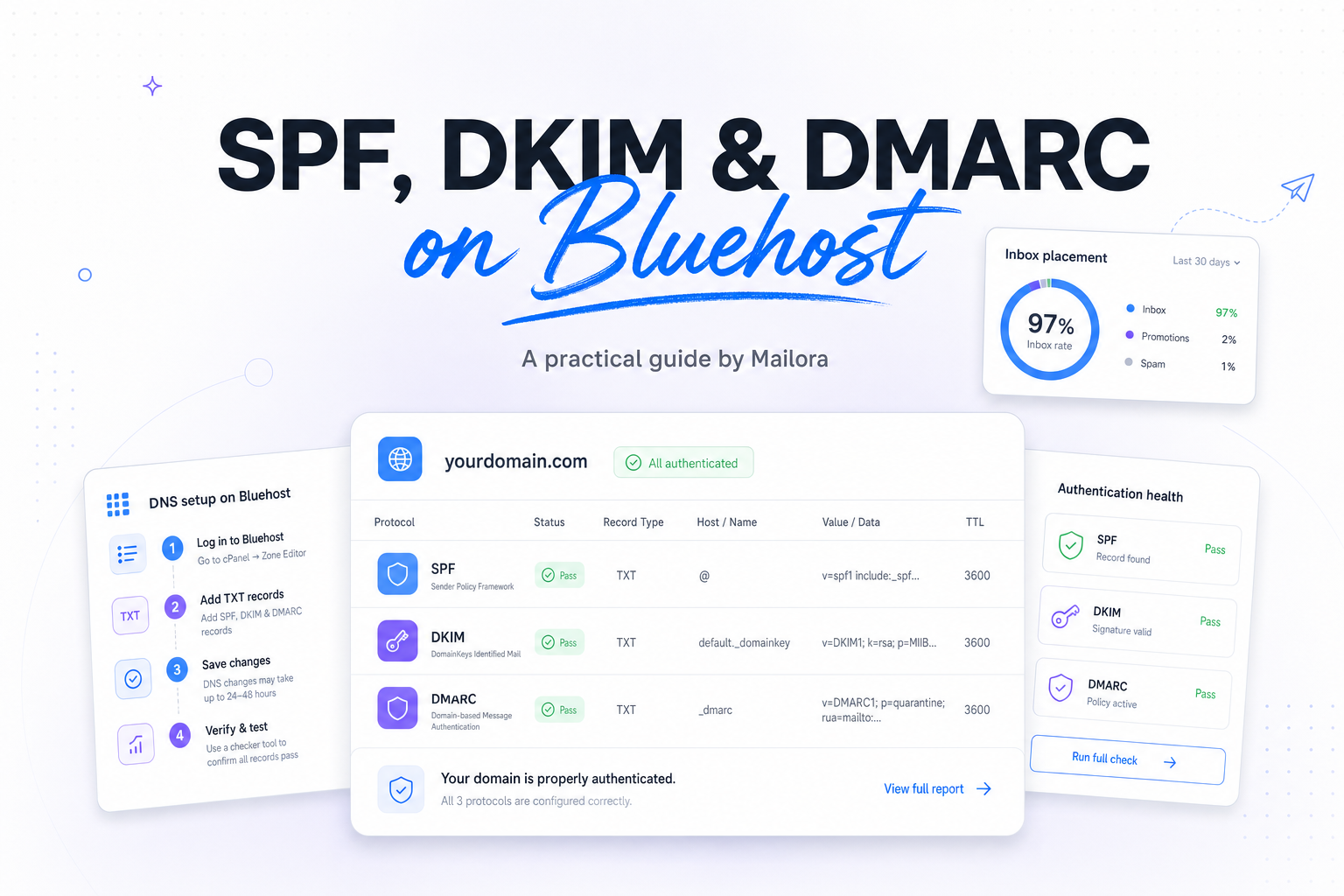
Key Takeaways
|
Google and Yahoo now treat senders of more than 5,000 messages a day to Gmail accounts as bulk senders, and both require SPF and DKIM, plus a published DMARC record. Even if you send less than that, the same records influence how Gmail, Outlook, and Yahoo assess your mail.
On Bluehost, that matters because the DNS layer is often separate from the system that actually sends your mail. A domain can live in Bluehost DNS while messages go out through Google Workspace, Microsoft 365, Klaviyo, HubSpot, or another ESP. If you publish the wrong record in the wrong place, the message may still send, but alignment and inbox placement can quietly suffer.
The practical goal is simple, make Bluehost publish the right authentication records for the tools your team actually uses, then verify that real messages pass at the mailbox providers that matter.
What SPF, DKIM, and DMARC each do on Bluehost
| Record | What receiving servers learn | Typical Bluehost task | Common mistake |
|---|---|---|---|
| SPF | Which servers are allowed to send mail for your domain | Add or update one TXT record at the root domain | Publishing multiple SPF records |
| DKIM | Whether the message was signed by an approved sender and stayed intact | Publish TXT or CNAME records for a selector | Using the wrong selector or pasting a broken key |
| DMARC | Whether SPF or DKIM aligns with the visible From domain, and what policy you want applied | Add one TXT record at _dmarc.yourdomain.com | Putting the record on the root domain instead of _dmarc |
SPF is a permission list. It tells Gmail, Outlook, and Yahoo which mail servers may send as your domain. SPF checks the envelope sender, not just the address a human sees in the From line.
DKIM is a cryptographic signature added by the sending platform. It matters because mail often passes through forwards and filters, and DKIM survives those hops better than SPF.
DMARC is the decision layer. It checks whether SPF or DKIM aligns with the visible From domain, then tells receivers whether to do nothing, quarantine, or reject failures. That alignment piece is the reason a domain can have SPF and DKIM present, yet still fail DMARC.
Start with the right Bluehost decision
First, confirm who hosts DNS
Only the authoritative DNS host can publish working SPF, DKIM, and DMARC records. Many teams log into Bluehost because that is where the domain was bought, but the live DNS may actually be at Cloudflare, Squarespace, or another provider. If Bluehost is not authoritative, changes there will not affect live mail flow.
Then, map every sending source
List every system that sends mail using your domain in the From address. That usually includes mailbox providers like Google Workspace or Microsoft 365, plus platforms such as Shopify notifications, HubSpot sequences, Zendesk, invoice tools, and your ESP. SPF and DKIM fail most often because one of these senders never made it into DNS.
Know whether Bluehost is sending mail or only publishing records
If your team uses Bluehost email hosting, Bluehost may provide built in SPF and DKIM options in cPanel or account tools. If your team sends through Google Workspace or an ESP, Bluehost usually only needs to publish the records those platforms provide. That distinction saves time, because the sender controls the DKIM signature, while Bluehost usually controls the DNS publication.
How to set up SPF on Bluehost
SPF lives in a TXT record on the root domain, often shown as @. The important rule is that you should have one SPF record for the domain, not several. Receivers treat multiple SPF records as an error, which means a well intended second record can break a previously working setup.
A typical SPF value looks like this: v=spf1 a mx include:_spf.google.com ~all. Your exact value depends on who sends your mail. If Microsoft 365 sends it, the include changes. If an ESP sends it, you usually add that provider's include as well.
The second rule is to keep the record efficient. SPF allows a maximum of 10 DNS lookups during evaluation. Large stacks with several ESPs can hit that limit faster than expected, especially if old vendors never got removed. If your record has grown over time, simplification is often as useful as adding a missing sender.
On Bluehost, add or edit the TXT record in the DNS zone for the domain. If Bluehost already created an SPF record for its own mail hosting and you now send through Google Workspace or Microsoft 365, do not create a second SPF entry. Merge the authorized senders into a single record.
How to set up DKIM on Bluehost
DKIM is normally provided by the system that sends the message. If Bluehost hosts your mailbox, the platform may generate the key for you. If Google Workspace, Microsoft 365, or an ESP sends the mail, that provider typically gives you one or more DNS records to publish in Bluehost.
Most modern setups use selector based records such as default._domainkey.yourdomain.com or s1._domainkey.yourdomain.com. Bluehost does not invent that selector for you, it simply publishes what the sender tells you to publish. If the selector is wrong by one character, receivers will not find the public key and DKIM will fail.
Many providers now support 2048 bit DKIM keys, which are stronger than older 1024 bit keys. If your sending platform offers 2048 bit signing and Bluehost accepts the record length cleanly, use it. It is a small improvement that aligns with current best practice.
After saving the record in Bluehost, send a live message to Gmail and inspect the headers. You want to see dkim=pass in the Authentication-Results line, and ideally the d= domain should be the same organizational domain as the visible From address.
How to set up DMARC on Bluehost
DMARC is another TXT record, but it belongs at _dmarc.yourdomain.com, not at the root domain. A safe starting value is: v=DMARC1; p=none; rua=mailto:dmarc@yourdomain.com
That starting policy does two useful things. First, it lets Gmail, Yahoo, and Outlook see that the domain has a DMARC record. Second, it gives your team reporting data before you enforce quarantine or reject. For most domains, this is the cleanest first move because it surfaces unknown senders and alignment issues without interrupting wanted mail.
DMARC passes when either SPF or DKIM passes and aligns with the visible From domain. This is why teams sometimes say, "SPF passes, but DMARC fails." The SPF pass may belong to a bounce domain owned by the ESP rather than your From domain. DKIM often becomes the easier path to alignment because the signing domain can be set to your brand domain.
Once real traffic is consistently aligned, usually after reviewing reports for a few weeks, move from p=none to p=quarantine, then to p=reject if your results support it. That sequence gives RevOps and lifecycle teams time to clean up forgotten tools and delegated senders before policy gets strict.
Common Bluehost mistakes that cause authentication failures
Publishing duplicate SPF records
This is the most common problem in Bluehost DNS. One record may come from old Bluehost mail hosting, another from Microsoft 365, and a third from an ESP setup guide. SPF needs one consolidated record.
Adding records in the wrong DNS host
If the nameservers point somewhere else, edits inside Bluehost do nothing. Always confirm where the domain's authoritative nameservers live before troubleshooting mailbox placement.
Using the wrong DKIM selector
Providers often give two CNAMEs or a long TXT key. If the host name is incomplete or the selector is mistyped, DKIM fails even though the record appears present in the UI.
Publishing DMARC on the root domain
A TXT record at yourdomain.com is not a DMARC record. The host must be _dmarc.yourdomain.com. This is a small syntax issue with big consequences, because receivers will act as if DMARC does not exist.
Forgetting alignment after a sender change
Mailbox providers care about the domain relationship, not just whether some record exists. If marketing moves from one ESP to another, or support mail moves into a help desk tool, your old SPF and DKIM records may still resolve while DMARC alignment quietly breaks.
How to verify your Bluehost setup before you trust it
After DNS propagates, send test messages to at least Gmail and Outlook. Open the full headers and look for Authentication-Results showing spf=pass, dkim=pass, and dmarc=pass. A good result is not just "some pass somewhere." The pass needs to align with the From domain your recipients actually see.
Also verify from more than one mail stream. Test a one to one message from a sales mailbox, a transactional email from your product or store, and a campaign from your ESP. Different systems often authenticate differently, even when they use the same From domain.
Finally, review DMARC aggregate reports rather than assuming the setup is complete. Those reports show which IPs and services are sending on your behalf, how often they pass, and where alignment breaks. That is where hidden vendors, forwarded flows, and subdomain quirks usually show up first.
Related reading: dkim vs spf and spf and dkim deliverability.
Run your first deliverability test
FAQs
Does Bluehost automatically create SPF, DKIM, and DMARC?
Not always. Bluehost may provide defaults for its own mail hosting, but if another platform sends your mail, you usually need to publish that provider's SPF and DKIM records yourself. DMARC also often needs to be added manually.
What is the best first DMARC policy on Bluehost?
For most domains, start with p=none and a reporting address. Once you confirm that legitimate mail aligns, move to quarantine and then reject.
Can I use Bluehost DNS with Google Workspace or Microsoft 365 mail?
Yes. Bluehost can host the DNS while Google Workspace or Microsoft 365 sends the mail. In that setup, Bluehost publishes the records and the mail platform supplies the correct SPF and DKIM values.
Why does SPF fail after I add a new ESP?
The new ESP usually needs to be added to your single SPF record. If you created a second SPF record instead, or if the combined record exceeds the 10 lookup limit, SPF can fail.
How long do Bluehost DNS changes take to affect delivery?
It depends on TTL and caching, but many changes are visible within minutes to a few hours. For planning purposes, allow up to 24 hours before treating a new record as fully propagated everywhere.
Stay in the loop
Deliverability insights, product updates, and early access to new features. No spam, unsubscribe anytime.
By subscribing, you agree to our Privacy Policy. Unsubscribe anytime.