Key Takeaways
|
As of February 2024, Google requires bulk senders that send 5,000 or more messages a day to Gmail to meet stricter sender requirements, including authentication and easier unsubscribes. That raised the bar for visibility, not just compliance.
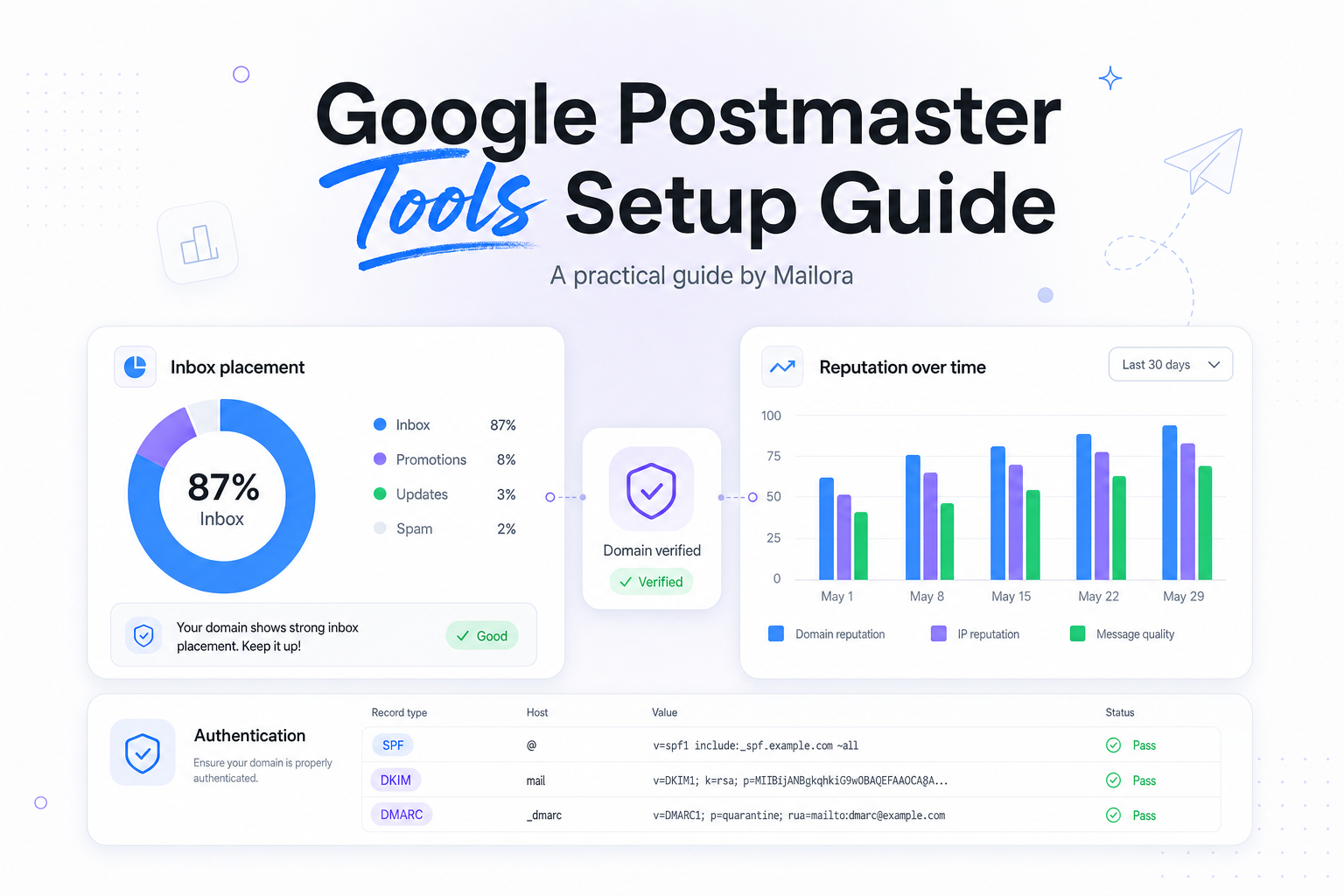
Google Postmaster Tools matters because it shows how Gmail sees your mail after it hits the network. That is different from what your ESP reports, and different again from what Outlook, Yahoo, and Apple Mail will do with the same campaign.
If you set it up well, you get a practical operating view of Gmail reputation, complaint pressure, authentication status, and delivery errors. If you set it up loosely, you often end up with a verified domain and no usable data.
What Google Postmaster Tools actually measures
Google Postmaster Tools is not a sender score and it is not an inbox placement tool. It is Gmail's own post-send telemetry for domains that send enough authenticated mail into Gmail.
The main dashboards most teams care about are:
- Domain Reputation, Gmail's view of your sending domain quality over time
- Spam Rate, the percentage of recipients who marked messages as spam
- Authentication, whether SPF, DKIM, and DMARC are passing as Gmail sees them
- Encryption, TLS success rates for mail in transit
- Delivery Errors, domain-level bounce and rejection patterns
- Feedback Loop, complaint insight tied to identifiers when available
The important decision point is scope. Postmaster Tools tells you what Gmail thinks about mail tied to a domain. It does not tell you why Outlook throttled a stream, why Yahoo bulked a promotion, or how Apple Mail privacy behavior distorted open data.
What you need before setup
1. Access to the domain's DNS
You need to publish a TXT record for domain verification. If marketing ops cannot edit DNS, involve whoever owns corporate DNS before you start.
2. A Google account
Any Google account can own the Postmaster Tools property. In practice, use a shared team-controlled account, not a personal Gmail login, so ownership survives staffing changes.
3. DKIM signing on the domain you want to monitor
This is the detail that trips teams up most often. Google ties Postmaster Tools data to DKIM-authenticated traffic. If your ESP signs with a different domain than the one you verify, you can get through verification and still struggle to see meaningful data.
4. Enough Gmail volume
Google does not publish a universal minimum, but it does say you need a considerable daily volume before data appears. If you only send a few hundred Gmail messages on irregular days, expect gaps.
Google Postmaster Tools setup, step by step
Add the domain you actually send from
In Google Postmaster Tools, add the domain that matches your authenticated mail stream. For many teams, that is the parent domain. For others, especially when marketing and transactional mail are separated, it is a sending subdomain such as updates.example.com or mail.example.com.
Publish the TXT verification record
Google will give you a TXT record. Add it at your DNS provider exactly as shown. Small formatting errors, wrong host values, and pasted quote characters are common causes of failed verification.
Verify and wait for DNS propagation
Once the record is live, return to Postmaster Tools and verify the property. Verification proves domain control, not data eligibility, so the next wait is for Gmail to associate enough authenticated traffic with that domain.
Send consistently before judging the dashboard
A green verification checkmark does not mean the charts will populate the same day. Senders often verify successfully and then assume something is broken because there is no data after a low-volume weekend or a paused campaign period.
Should you verify the root domain or a subdomain?
This is the setup choice with the biggest operational impact. The right answer depends on how your streams are segmented and where your DKIM identity lives.
| Verification choice | Best for | Watch-outs |
|---|---|---|
| Root domain | Brands sending most mail from one domain identity | Can blend signals from different programs, teams, or ESPs |
| Subdomain | Teams separating marketing, lifecycle, and transactional traffic | Needs consistent DKIM signing and enough Gmail volume on that subdomain |
If your promotional mail and product mail have very different complaint profiles, verify the sending subdomain where possible. That makes the data easier to interpret and act on. A lifecycle team sending low-complaint product nudges should not have its Gmail reputation blurred by a high-volume acquisition blast.
Why Postmaster Tools shows no data after setup
No data is usually a signal problem, not a UI problem. Start with the mechanics before assuming Gmail is withholding anything.
Low Gmail volume
If your daily Gmail volume is inconsistent or small, Google may not surface charts reliably. This is common for B2B senders with narrow audience slices.
DKIM is not aligned with the verified domain
If your ESP signs with d=mailer.vendor-domain.com while you verified your brand domain, Gmail may not connect the traffic the way you expect. Check the DKIM d= value in real headers from delivered mail.
Multiple ESPs or mixed infrastructure
When one domain is used across two or three platforms, the data can look fragmented or delayed. That does not make the tool wrong, it means your identity layer is not clean enough for straightforward analysis.
Recent DNS changes
Verification records usually propagate quickly, but not always instantly. If the TXT record looks correct and verification still fails, recheck the exact host placement and wait for propagation to settle.
Wrong property choice
Teams often verify the parent domain when the mail that matters is actually signed and sent from a subdomain. If the dashboard stays empty while Gmail volume is healthy, revisit what you verified.
How to read the main Postmaster Tools dashboards
Domain Reputation
This is the headline view. If Gmail moves your domain from High to Medium or Low, that is not a cosmetic change. It usually reflects a measurable shift in engagement quality, spam complaints, list composition, or send cadence. Treat it as a decision input for segmentation and volume planning.
Spam Rate
Google's sender guidance says to keep reported spam rates below 0.3%, and ideally under 0.1%. If your spam rate trends above that range, do not solve it with more volume. Solve it by tightening audience selection, reducing stale recipients, and aligning frequency with actual user intent.
Authentication
This view helps validate that Gmail sees your SPF, DKIM, and DMARC posture the way you think it should. It is particularly useful after ESP migrations, domain changes, or selector rotation.
Delivery Errors
Look here when Gmail acceptance shifts suddenly. A spike in temp failures or policy rejections often explains why campaign volume dropped even though your ESP says the send completed.
Encryption
TLS success should be boring. If it is not, involve whoever owns your mail infrastructure. It is not the first chart most marketers use, but it matters for transport hygiene.
Common setup mistakes to avoid
- Verifying the wrong domain, especially the parent domain when all important mail is DKIM-signed on a subdomain
- Assuming verification equals visibility, you still need enough authenticated Gmail volume
- Ignoring header-level validation, the real answer is often in the DKIM d= value and alignment, not in the UI
- Using one domain for unlike traffic, high-risk acquisition mail and low-risk product mail should not always share identity
- Expecting cross-provider insight, Postmaster Tools helps with Gmail, but it will not explain Outlook or Yahoo behavior
How teams use Postmaster Tools in practice
The best teams do not log in only when deliverability is already hurting. They use Gmail telemetry as part of regular send planning.
A practical operating rhythm looks like this:
- Check Domain Reputation and Spam Rate before large launches
- Review Authentication after DNS, ESP, or selector changes
- Compare complaint spikes against audience source, frequency, and creative shifts
- Separate streams when one program is putting pressure on another
The goal is not to chase every chart movement. The goal is to spot changes early enough to make better sending decisions before Gmail makes them for you.
Related reading: inbox placement tools and email verification tools.
Run your first deliverability test
FAQs
How long does Google Postmaster Tools take to show data?
Verification can be quick, but dashboard data depends on enough authenticated Gmail volume. Some domains show data within days, while lower-volume senders may wait longer or see gaps.
Can I set up Google Postmaster Tools for a subdomain?
Yes. In many cases, that is the better choice, especially if marketing and transactional mail are separated and DKIM is tied to the subdomain.
Why is my domain verified but the charts are empty?
The usual causes are low Gmail volume, DKIM signing on a different domain, or verifying the wrong property. Check message headers before changing anything else.
Does Google Postmaster Tools help with Outlook or Yahoo deliverability?
No. It is a Gmail-specific visibility tool. Useful, but only one part of a broader deliverability operating picture.
What metric should I watch first after setup?
Start with Domain Reputation and Spam Rate. Those two views most often explain why Gmail placement is getting easier or harder over time.
Stay in the loop
Deliverability insights, product updates, and early access to new features. No spam, unsubscribe anytime.
By subscribing, you agree to our Privacy Policy. Unsubscribe anytime.