Email Attachment Size Limits: What Happens When You Exceed them
Key Takeaways
|
Introduction
Email attachment size limits are usually treated as a technical specification, like a number to check before sending, a constraint to design around, a UX concern at most.
In reality, attachment size is closer to an infrastructure decision than a formatting one. It affects which messages clear the sender's outbound checks, which messages clear the recipient's inbound checks, and how mailbox providers evaluate the long-term reliability of the sending domain.
The reason this matters is that attachment failures rarely surface as a single, isolated bounce. Repeated attachment-related delivery failures can contribute to sender reputation issues, which may later appear as reduced inbox placement
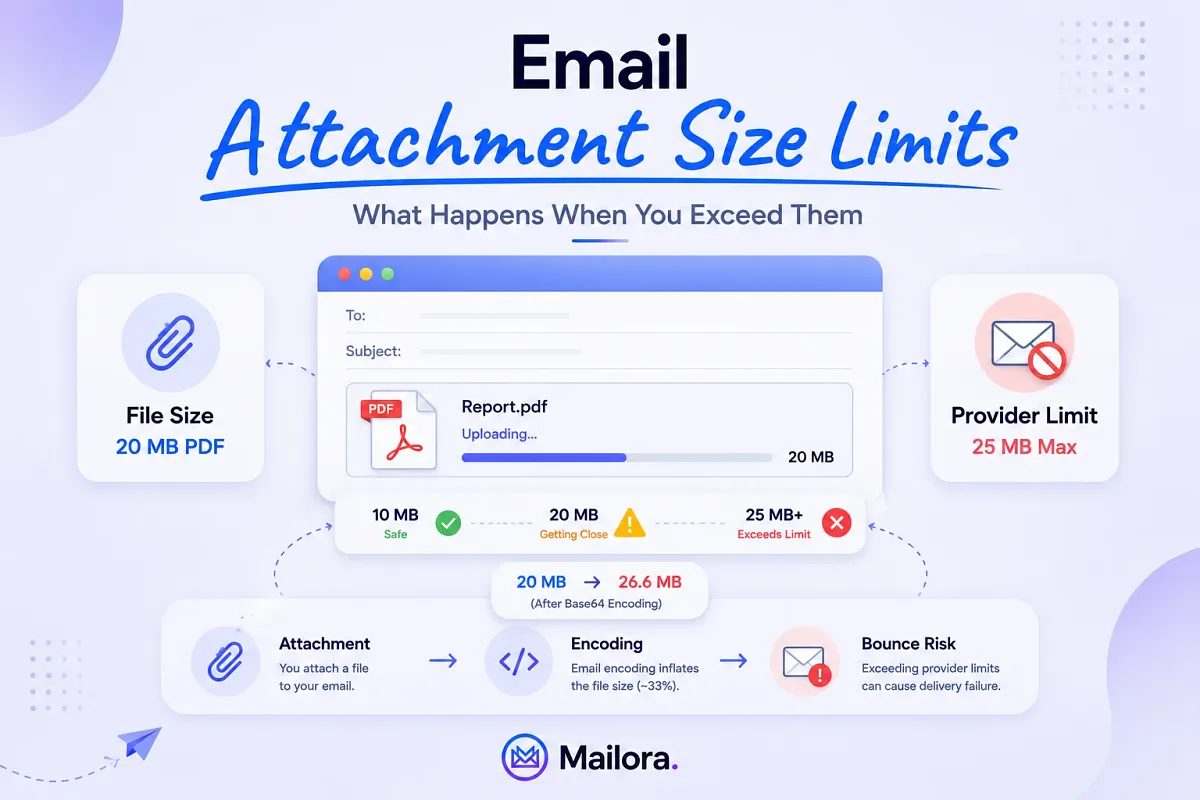
A 20MB file becomes a 27MB encoded payload during transit. A 27MB payload bounces against the recipient's 25MB inbound cap. A pattern of these bounces, spread across a quarter of outbound campaigns, can contribute to weaker sender reputation signals that influence where future messages land
This guide explains the actual attachment limits across every major email provider in 2026, walks through the operational consequences of exceeding them, and offers a framework for managing attachment-heavy sending without compromising long-term deliverability.
What Actually Counts Toward Your Email's Total Size
An email's size is not the same as the file size of the attachment. Receiving mail servers measure the total payload of the message, which includes the message body, headers, inline images, embedded tracking pixels, and the attachment in its encoded form. The raw file size shown on your desktop is only one part of that calculation.
The most important variable in this process is Base64 encoding. SMTP, the protocol that moves email between servers, was originally designed to handle 7-bit ASCII text. Binary files such as PDFs, images, presentations, spreadsheets, or videos cannot move through SMTP in their native format. To make them transferable, mail clients convert these files into Base64, an encoding format that represents binary data using printable characters.
This conversion increases the file size by roughly one-third, which is why an attachment that looks safely within the limit on your computer may actually exceed the provider's allowance once the email is sent.
The table below shows how the encoded size compares to the original file size for common attachment types:
| File on disk | After Base64 encoding | Total email weight (with body + headers) |
| 10MB PDF | ~13.3MB | ~13.4MB |
| 15MB deck | ~20MB | ~20.1MB |
| 20MB report | ~26.6MB | ~26.7MB |
| 25MB video file | ~33.3MB | ~33.4MB |
[Table: A comparison of file sizes before and after Base64 encoding]
A 20MB PDF that appears to be safely below Gmail's 25MB ceiling becomes roughly 26.6MB after encoding, which already exceeds the limit before the SMTP transaction begins. This is why attachments that look acceptable on the desktop still bounce when sent. The provider is enforcing the limit against the encoded payload, instead of the original file shown in the operating system.
As a practical rule, subtract roughly 25 to 33 percent from any provider's advertised attachment limit and treat the remaining figure as the actual size you can work with.
Email Attachment Size Limits by Provider
Every major provider has its own attachment limit, applies it differently to sending and receiving, and in enterprise environments often exposes it as an admin-configurable setting that can vary quietly between tenants. The table below consolidates the current limits across major providers, shown both before and after encoding is applied:
| Provider | Sending limit | Receiving limit | Effective limit (post-encoding) | Notes |
| Gmail (consumer) | 25MB | 50MB | ~18MB | Attachments over 25MB auto-convert to Google Drive links |
| Google Workspace | 25MB | 50MB | ~18MB | Cannot be raised above 25MB even by admins |
| Outlook.com | 20MB | 20MB | ~15MB | Strict symmetric cap |
| Microsoft 365 / Exchange Online | 25MB default (up to 150MB) | 25MB default (up to 150MB) | Varies by tenant | Admin-configurable per mailbox plan |
| Yahoo Mail | 25MB | 25MB | ~18MB | Larger files routed through Yahoo's link service |
| Apple iCloud Mail | 20MB | 20MB | ~15MB | Mail Drop kicks in for attachments up to 5GB |
| ProtonMail | 25MB | 25MB | ~18MB | Encrypted, applies to total message size |
| Zoho Mail | 20MB (free) / 40MB (paid) | 20–40MB | ~15–30MB | Plan-dependent |
| AOL Mail | 25MB | 25MB | ~18MB | Same Yahoo back-end as Yahoo Mail |
| SMTP2GO | 50MB | N/A (sender-side) | ~37MB | Higher cap for transactional senders |
[Table: Limitations of email attachment sizes by different email service providers]
The effective limit in the above table reflects the actual size your message can reach once encoding inflates the payload, which is what providers measure when accepting or rejecting an email.
The Microsoft 365 is worth paying close attention to, because it is the one that quietly breaks the largest number of outbound campaigns. The default sending limit is 25MB, but enterprise administrators often configure their tenants to lower thresholds for storage, security, or compliance reasons. A 25MB attachment is not guaranteed to reach a corporate recipient simply because Microsoft's documentation lists 25MB as the standard cap.
Understanding these provider-level differences is the first step in avoiding silent attachment failures, especially when sending to mixed audiences across consumer and enterprise mailboxes.
Why Sending and Receiving Limits Aren't the Same Thing
One of the most common reasons attachment-related deliverability issues go undetected is the assumption that a single attachment limit applies to every send. In reality, every email passes through two independent size checks:
- At the sender's mail server
- At the recipient's mail server.
The stricter of the two always determines whether the message is delivered.
A message must clear both gates to reach the inbox. If the outbound limit is satisfied but the inbound limit on the recipient's side is lower, the email fails on delivery. Since this failure happens at the recipient's side, the sender often sees the message as "sent" even though it never reached the intended mailbox.
For example, a sales team sends a 22MB attachment from a Gmail account. Gmail allows outbound messages up to 25MB, so the send completes successfully on their end. However, the recipient uses Outlook.com, which caps incoming messages at 20MB. Outlook rejects the message at the perimeter and returns an SMTP 5xx response, which Gmail eventually converts into a non-delivery report.
In some cases this report arrives quickly, in others it is delayed by hours, and occasionally it is suppressed entirely depending on the receiving server's configuration.
From the sender's view, the email appears delivered, but the recipient never sees it, and any follow-up messages in the sequence continue going out as if the original proposal had landed.
That is why when sending to enterprise contacts whose infrastructure cannot be verified, treating 15MB as the upper bound is a more dependable approach than relying on the 25MB cap most consumer providers publish.
What Happens When You Exceed the Limit
Oversized messages can fail in several different ways, and some of these outcomes are significantly more costly to deliverability than others because the sender often does not realize what went wrong. The most common outcomes are described below:
Hard bounce with a non-delivery report
This is the cleanest failure case. The receiving server rejects the message at the SMTP layer with a 5xx response, the sending server generates a non-delivery report, and the original sender receives an email explaining the rejection. The sender knows the message failed, understands why, and can take corrective action.
Soft bounce with a retry loop
Some receiving servers respond to oversized payloads with a 4xx temporary failure, which is technically designed for transient issues such as a full mailbox. The sending server then retries on a schedule, fails again, and continues retrying until it eventually gives up, which can take several days. During this window, campaign analytics show the message as pending for hours before marking it as failed, often without a clear explanation.
Silent drop
This is the outcome that does the most damage to deliverability investigations. The receiving server accepts the SMTP transaction with a 250 OK response, then quietly discards the message during downstream processing because it failed an internal size or content check. The sender sees a successful delivery in the logs, the recipient never receives the message, and there is no bounce, non-delivery report, or visible signal that anything went wrong.
These cases are particularly difficult to detect because every observable signal indicates success. The only way to identify them is through inbox placement testing or recipient-side confirmation.
Spam filter deprioritization
Oversized messages often trigger more aggressive scoring from spam filters, especially when the attachment pattern matches signals filters associate with phishing payloads, malware droppers, or bulk file dumps. The message arrives, but it lands in the spam folder, the promotions tab, or a quarantine queue. Inbox placement degrades for that specific send, and the pattern can also influence how future sends from the same domain are evaluated.
Sender reputation drift
Repeated hard bounces, persistent delivery failures, and negative engagement patterns can contribute to the sender reputation signals that Gmail, Microsoft, Yahoo, and major B2B receivers continuously track. A single oversized campaign rarely creates a noticeable shift, but a pattern of them across a quarter measurably degrades inbox placement for all subsequent sends, including campaigns that do not include attachments at all.
This is the consequence senders most often miss, because the gap between the oversized campaign and the placement decline is long enough to feel unrelated. By the time inbox placement drops on a routine newsletter or follow-up sequence, the attachment-heavy campaign that contributed to the reputation shift is several weeks in the past and no longer part of the diagnostic conversation.
This is the layer where Mailora's advanced email deliverability becomes useful. Bounce-rate spikes tied to specific campaigns, inbox placement shifts that follow attachment-heavy sends, and reputation drift across providers all surface in a single operational view, which makes the connection visible while it still matters.
How Large Attachments Affect Your Sender Reputation and Deliverability
The sender reputation impact of repeated attachment-related delivery failures is one of the least discussed challenges of the attachment-size conversation, even though it is often one of the most expensive outcomes for high-volume senders.
Sender reputation is the weight that mailbox providers assign to your sending domain and IPs based on past behavior. Bounces, complaints, spam-trap hits, recipient engagement, and authentication health all feed into this score, which then determines where your future messages land, the inbox, promotions, spam, or rejected at the perimeter before delivery.
High bounce rates are a strong negative signal, and attachment-related delivery failures can contribute to those bounce rates when messages exceed recipient or provider limits.
However, a single campaign with a 15% bounce rate from oversized attachments rarely triggers an immediate placement issue. Instead, it contributes to a slow degradation that surfaces three or four campaigns later, when an unrelated, attachment-free send to the same list suddenly lands in promotions instead of the inbox.
The sender investigates the most recent campaign, finds nothing technically wrong with it, and rarely connects the placement shift back to the attachment-heavy campaign sent several weeks earlier.
This is where DMARC aggregate reports become useful, but only if the sending team knows what to look for. The XML reports that providers return include disposition data, how many messages were delivered, quarantined, or rejected, broken down by the receiving server.
A spike in rejection counts from one or two specific receivers, correlated with a send window that included heavy attachments, is the fingerprint of an attachment-size deliverability incident. Most teams either do not open their DMARC reports at all, or open them without the tooling needed to correlate disposition shifts with the content of specific campaigns.
This is the layer of intelligence that basic pass-or-fail spam checkers and DNS lookup tools were never built to provide, and where decision-grade inbox placement tools become part of the stack.
Attachment size is not a user experience inconvenience. It is an infrastructure decision that mailbox providers track, weight, and respond to over a window measured in weeks. Treating it as a per-send concern is what allows the slow reputation drift to accumulate, often surfacing only after it has already affected several campaigns.
The Safe Sending Threshold (and How to Stay Under It)
For cross-provider reliability in 2026, the safe sending threshold is under 10MB of total message size, which includes the encoded attachment, the message body, inline images, signatures, and any tracking markup.
This is not an arbitrary figure. It clears the effective post-encoding ceiling of every major provider, leaves enough headroom for stricter enterprise tenants, and stays well under the mobile rendering thresholds and corporate firewall heuristics that flag heavier payloads.
While 10MB works as a universal safe ceiling, the right target also depends on what is being sent. Different use cases carry different expectations from both recipients and filtering systems, which is why the safe attachment size shifts across campaign types.
Safe Attachment Sizes by Use Case
Use case | Recommended target | Reasoning |
| Invoices, receipts, short business documents | Under 1MB | Clean PDFs are typically well under 500KB. Anything larger usually indicates an embedded scan or oversized logo. |
| Proposals, decks, image-heavy PDFs | Under 5MB | Clears most corporate Exchange caps and renders quickly on mobile devices. |
| Reports and onboarding kits | Under 8MB | Stays under enterprise inbound limits while accommodating richer content. |
| Internal transfers and large files | Use a shared drive | Email is not designed for large file transfer. Cloud links scale better and avoid mail server strain. |
| Marketing campaigns | No attachments | Marketing emails should rely on HTML and links. Attachments often trigger filtering systems and signal a phishing pattern. |
[Table: Different use cases where attachments are used in emails and how to stay under size limits for each of them]
Once the size target is clear, the next step is reducing the actual weight of the message. Here’s how to do it:
Compress before attaching
A ZIP of a single PDF can shave between 5 and 15 percent off the original file size. A ZIP of a multi-file bundle, such as a proposal, case study, and pricing sheet, can reduce total size by 30 percent or more. Standard ZIP is universally supported and rarely causes filtering issues. Formats like RAR or 7z should be avoided, since some corporate mail gateways strip them as suspicious attachments.
Optimize images aggressively
A screenshot dragged into a proposal is often 4 to 6MB at native resolution. Resizing it to the actual display dimensions and re-saving it as a JPEG at around 80 percent quality usually reduces the file to under 500KB without any visible loss in quality. Running images through an image optimizer before adding them to a document is one of the highest-impact changes a team can make.
Strip metadata and revision history
PDFs exported from design tools often carry embedded fonts, vector layers, and revision history that significantly increase file size without contributing to how the document renders. Built-in optimization tools, such as Acrobat's "Reduce File Size" and Preview's "Reduce File Size" option on macOS, remove this overhead cleanly.
Send the relevant subset, not the full deck
If three slides answer the prospect's question, the email should include a three-slide PDF rather than the full 80-slide master deck. Most outbound attachments are over-scoped, and the recipient rarely needs the full appendix. Trimming before sending is often more effective than compressing afterward.
These tactics work best when treated as operational habits rather than one-time interventions. Teams that maintain consistently strong deliverability tend to apply the 10MB ceiling as a default rule for every attachment-bearing send, not as a guideline reviewed only when something goes wrong.
For the broader operational picture, our breakdown of email deliverability best practices covers the full set of habits that compound into reliable inbox placement over time.
When to Use Cloud Links Instead of Attachments
For any file larger than 10MB, the standard recommendation in 2026 is to share it through a cloud-hosted link rather than as a direct attachment. The major providers have already built this behavior into their products.
Gmail automatically converts attachments over 25MB into Google Drive links during the compose flow. Outlook integrates with OneDrive and SharePoint for the same purpose, and Apple Mail uses Mail Drop to handle files up to 5GB through expiring iCloud links. Replacing the embedded file with a link to a hosted version is now the default approach across most consumer providers.
The advantage of this method is largely structural. Cloud links bypass every provider size cap, give the recipient control over when and where they download the file, and eliminate the encoding overhead that turns a 20MB attachment into roughly 27MB on the wire. More importantly, they remove the attachment-bounce risk from the sender reputation signal, which protects the long-term health of the sending domain.
There is, however, a trade-off. Emails with links are scored differently from emails with direct attachments. Shortened URLs, unfamiliar domains, and links that match patterns associated with phishing campaigns often trigger additional filtering attention.
A link to drive.google.com from a sending domain with strong authentication usually passes cleanly. However, a link to a self-hosted file-sharing service on an unfamiliar domain can attract filtering, especially in B2B environments where corporate security stacks evaluate every unknown link destination before delivery.
A few practical guidelines help reduce this risk:
- Default to cloud links for any file larger than 10MB.
- Match the link to the recipient's ecosystem where possible. Google Drive for Gmail recipients and OneDrive for Microsoft 365 tenants tend to clear filters more reliably because they are already trusted in those environments.
- Avoid URL shorteners. They obscure the destination and resemble patterns that spam filters associate with phishing.
- Use authenticated sending infrastructure when sharing links. SPF, DKIM, and DMARC alignment carry even more weight when the message body contains a clickable destination.
For teams running comparative tests on attachment-versus-link compositions, our guide on how to test email deliverability covers the methodology for measuring placement differences across both approaches.
Testing Attachment-Heavy Emails Before You Send
Pre-send testing is one of the most reliable habits that separates teams who occasionally troubleshoot deliverability issues from teams who avoid them altogether.
For attachment-heavy campaigns such as proposals, reports, invoices, onboarding kits, and sales collateral, the time invested in testing is usually measured in hours, while the cost of skipping it can show up as a full quarter of degraded inbox placement.
The test that matters is not whether the file opens correctly on the recipient's device. It is whether the message reaches the inbox, where it lands across different providers, whether authentication holds up under the encoded payload, and whether the attachment itself triggers any filtering behavior at the receiving server.
These outcomes are rarely consistent across providers. A campaign that arrives cleanly in Gmail's primary inbox may end up in Outlook's junk folder. SPF and DKIM may pass at the SMTP layer while DMARC alignment quietly fails because the encoded message size pushes the headers past a rewriting threshold on the receiving server.
None of these signals appear in a standard sending platform's "sent" report, which is one of the reasons attachment-related deliverability incidents are so often misdiagnosed.
Mailora's deliverability testing is built specifically for this layer of the problem. Running a deliverability test against the exact composition planned for the campaign, the same attachment, body content, and authentication setup, surfaces how the message will actually be evaluated by major receivers.
Placement distribution across Gmail, Outlook, Yahoo, and other providers, authentication behavior under the encoded payload, and any filtering triggers tied to the attachment all appear in a single diagnostic view.
This makes it possible to decide, before the campaign goes live, whether to send the message as planned, replace the attachment with a hosted link, or restructure the content to improve placement. The decision is grounded in real receiver behavior rather than assumptions about how the email is likely to perform.
Email Attachment Size Alone Doesn’t Impact Deliverability
The attachment size limit is the easy half of the problem. The hard half is everything that happens once a message brushes against it, the encoding overhead, the recipient-side cap you cannot see, the silent drops that look like successful delivery, the slow sender-reputation drift that surfaces three campaigns later.
Knowing the limit is table-stakes, but knowing what happens on the other side of it is what separates teams who send attachment-heavy campaigns with confidence from teams who diagnose a placement collapse every quarter and never connect it back to the proposals they sent in March.
Mailora is the deliverability intelligence layer for that second half of the problem. If you send proposals, reports, or any attachment-bearing campaign at scale, run your first deliverability test on a real send before the next campaign goes out, and see, in concrete per-provider terms, what your attachment strategy is actually doing to your inbox placement.
FAQs
What is the maximum email attachment size for Gmail in 2026?
Gmail's attachment limit is 25MB for sending and 50MB for receiving. Files larger than 25MB automatically convert to Google Drive links during compose. After Base64 encoding, the effective ceiling is closer to 18MB on the wire.
Does Base64 encoding really add 33% to my attachment size?
Approximately, yes. Base64 represents three bytes of binary data using four ASCII characters, which produces a 33% size increase. A 20MB file becomes about 26.6MB after encoding.
Can large email attachments hurt my sender reputation even if they don't bounce?
Large attachments do not directly harm sender reputation. However, they can increase the likelihood of delivery failures, filtering issues, and poor recipient engagement. Repeated negative outcomes can contribute to sender reputation problems over time.
What happens if my attachment exceeds the recipient's server limit but not mine?
The message is rejected at the recipient's perimeter with a 5xx SMTP response that triggers a non-delivery report. In some cases the receiving server accepts the handshake and silently drops the message during downstream processing. The stricter of the two limits always wins.
How can I test whether an attachment-heavy email will land in the inbox before sending it?
Run a pre-send deliverability test against a seed list across Gmail, Outlook, Yahoo, and any enterprise destinations relevant to the campaign. The test should show per-provider placement, authentication results under the encoded payload, and any filtering signals tied to the attachment.
Stay in the loop
Deliverability insights, product updates, and early access to new features. No spam, unsubscribe anytime.
By subscribing, you agree to our Privacy Policy. Unsubscribe anytime.