What Is an Inbox Test: How Do You See Where Your Email Lands Before You Send?
Key Takeaways
|
If you've ever looked at a campaign report and wondered why engagement feels lower than it should, inbox placement is one of the first places to investigate.
Many deliverability problems are often caused by emails reaching spam folders instead of inboxes. However, most email platforms don't show you this. They confirm delivery, but they don't reveal what happened after the message was accepted. An inbox test gives you that visibility.
In this guide, we'll break down what inbox tests measure, how to interpret placement results, why mailbox providers filter email differently, and how ongoing deliverability monitoring helps you protect inbox placement over time.
What an Inbox Test Measures (and What It Doesn’t)
Inbox placement is the metric that determines whether your email gets seen. A message landing in spam was technically delivered, but it just wasn't seen or read by the recipient.
A message sorted into Promotions at Gmail reached a folder most subscribers check less often, if at all. Neither outcome shows up in your delivery rate, but both directly affect whether your campaign performs.
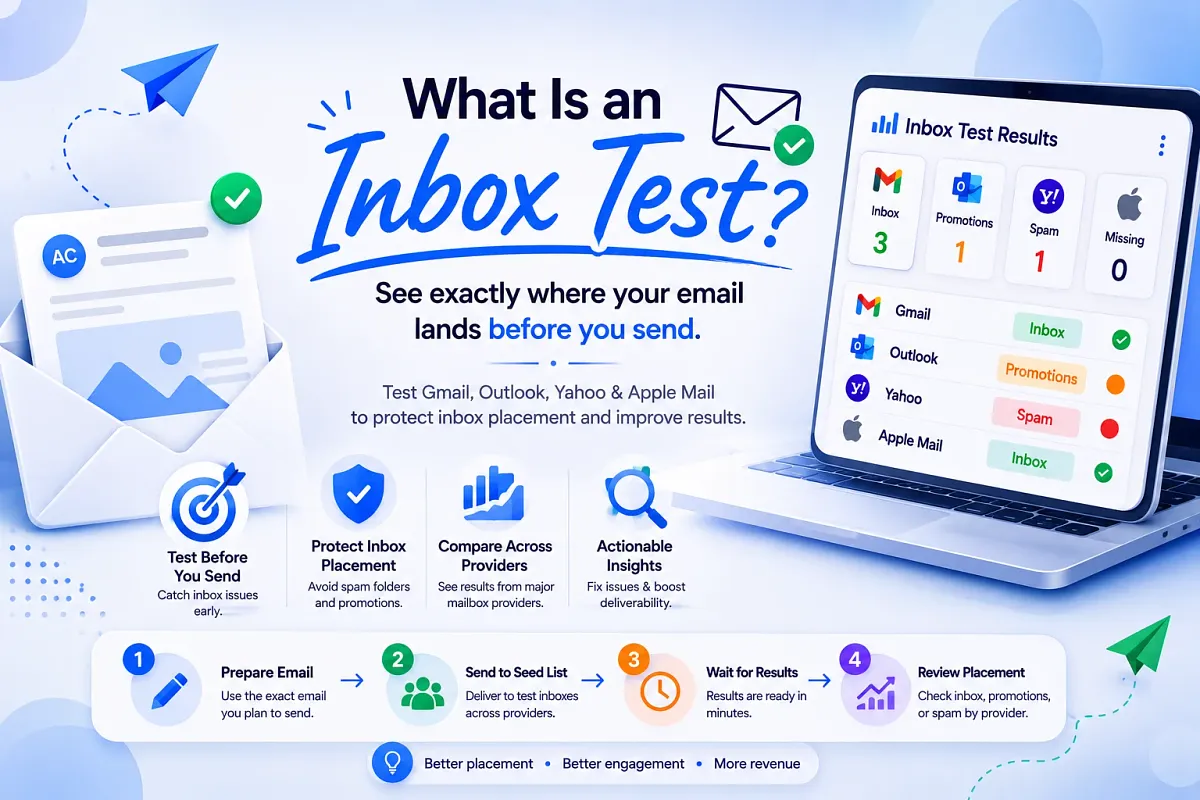
An inbox test is built specifically to surface placement. It sends your email to seed addresses at Gmail, Outlook, Yahoo, and Apple Mail, then reports exactly which folder it landed in, per provider, before your real list ever sees it.
What an Inbox Test Measures
- Inbox placement: Did the message land in the primary inbox, Promotions tab, or spam folder?
- Provider-specific behavior: How Gmail, Outlook, Yahoo, Apple Mail, and other providers classify the same message.
- Authentication impact: Whether SPF, DKIM, and DMARC alignment are influencing placement.
- Reputation signals: Whether your sending domain or IP is being treated as trusted, suspicious, or promotional.
- Pre-send risk detection: Whether a campaign is likely to hit spam before it reaches your real audience.
What an Inbox Test Does Not Measure
- Delivery rate: Whether the recipient server accepted the message. Your ESP already reports this.
- Open rates: Especially unreliable after Apple Mail Privacy Protection (MPP), which Apple Mail Privacy Protection (MPP), which pre-loads email content through Apple-operated proxy servers, triggering tracking pixels regardless of whether a human actually opened the message, inflating open rates rather than merely 'triggering opens automatically.
- Click-through rates: Inbox tests do not track subscriber engagement.
- List quality: They do not validate whether email addresses are real or safe to send to.
- Full deliverability diagnosis on their own: An inbox test shows the symptom (spam placement), but you still need authentication, reputation, and infrastructure analysis to identify the cause.
Inbox Test vs. Delivery Metrics
| Question | ESP Delivery Metrics | Inbox Test |
| Was the email accepted by the recipient server? | Yes | Yes |
| Did it reach the inbox? | No | Yes |
| Did it go to spam? | No | Yes |
| Did it land in Promotions? | No | Yes |
| Does it validate list quality? | No | No |
| Does it explain the root cause? | No | Partially |
[Table: Inbox Test vs. Delivery Metrics - What your ESP reports vs. what an inbox test actually shows]
How to Run an Inbox Test
Inbox placement decisions are influenced by the complete message, including the subject line, content, links, images, authentication, sending domain, and reputation. If the test email differs from the live campaign, the results become less useful.
Step 1: Finalize the Email You'll Actually Send
Before testing, prepare the exact campaign version intended for production.
That includes:
- The final subject line
- Preheader text
- All links and tracking parameters
- Images and attachments (if applicable)
- Footer and unsubscribe links
- Sending domain and "From" address
Avoid testing a simplified version of the email. Even small changes can affect placement outcomes.
Step 2: Send the Email to a Seed List
Instead of sending to real subscribers, send the campaign to a seed list.
A seed list contains test addresses hosted across major mailbox providers, including:
- Gmail
- Outlook
- Yahoo
- Apple/iCloud
- AOL
- Regional and business mailbox providers
These addresses act as controlled recipients and report where the message lands after delivery.
The goal is to observe how mailbox providers treat the email before sending the campaign to your actual audience.
Step 3: Wait for Placement Data
Once the email is sent, the testing platform monitors delivery across the seed addresses.
Most results are available within a few minutes.
At this stage, the system records:
- Whether the email was received
- Whether authentication passed
- Which folder the message landed in
- Whether any providers rejected or throttled the message
This is where inbox testing goes beyond standard ESP reporting because delivery alone doesn't tell you whether subscribers will see the message.
Step 4: Review Placement by Provider
Results should be analyzed provider by provider because a campaign can perform well at one mailbox provider and poorly at another.
For example:
| Provider | Result |
| Gmail | Inbox |
| Outlook | Spam |
| Yahoo | Inbox |
| Apple Mail | Inbox |
[Table: Provider placement example (Gmail/Outlook/Yahoo/Apple Mail results)]
Looking only at overall delivery numbers means overlooking this difference.
Review:
- Inbox placement rates
- Spam-folder placement
- Promotions-tab placement (where applicable)
- Missing or delayed messages
- Provider-specific issues
The objective is to identify problems before they affect real recipients
Step 5: Verify Authentication Results
Inbox testing should also confirm that authentication is functioning correctly.
Check:
- SPF passes
- DKIM passes
- DMARC passes and aligns properly
Authentication failures often explain placement problems that initially appear to be reputation or content issues.
A campaign can be fully delivered and still be filtered because of an authentication misconfiguration.
Step 6: Review Reputation and Blocklist Signals
If placement issues appear, look beyond the message itself.
Review:
- Domain reputation
- IP reputation
- Blocklist status
- Recent complaint trends
- Sending-volume changes
Poor placement is often tied to infrastructure trust rather than email content.
This is why inbox testing is most useful when combined with ongoing reputation and authentication monitoring.
Step 7: Fix Issues Before Sending to Your List
The biggest advantage of inbox testing is that it happens before the campaign goes live.
Depending on the results, you may need to:
- Correct SPF, DKIM, or DMARC issues
- Adjust sending volume
- Warm up a new domain or IP
- Remove problematic links
- Resolve blocklist issues
- Update content triggering provider filters
Making changes after the campaign has already reached 100,000 recipients is significantly more expensive than fixing the issue beforehand.
See exactly where your email lands before you send. Copy the seed list, send your campaign, and get per-provider placement results, inbox, Promotions, or spam, at Gmail, Outlook, Yahoo, and Apple Mail. Results in under 5 minutes. Run a Free Inbox Test
Inbox Placement Test vs Email Deliverability Test
Feature | Email Deliverability Test | Inbox Placement Test |
| Primary Question | Is my email infrastructure healthy enough to reach recipients consistently? | Where did this specific email land after delivery? |
| Focus Area | Overall deliverability health | Folder placement outcomes |
| Measures Inbox vs Spam Placement | Yes (as one signal) | Yes (primary purpose) |
| Uses Seed Lists | Often | Always |
| Checks SPF, DKIM, and DMARC | Yes | Usually included |
| Evaluates Domain Reputation | Yes | Limited |
| Evaluates IP Reputation | Yes | Limited |
| Detects Authentication Issues | Yes | Yes |
| Detects Blocklist Problems | Yes | Sometimes |
| Reviews Sending Infrastructure | Yes | No |
| Reviews Domain Health Over Time | Yes | No |
| Measures Campaign-Level Placement | Sometimes | Yes |
| Identifies Root Cause of Placement Issues | Yes | Usually no |
| Best Used For | Ongoing monitoring and troubleshooting | Pre-send campaign validation |
| Time Horizon | Continuous and historical | Point-in-time |
| Typical Output | Authentication status, reputation signals, placement trends, blocklists, infrastructure health | Inbox, Promotions, Spam, or Missing by provider |
| Example Question Answered | Why are Gmail and Outlook filtering my mail? | Did this campaign land in Gmail Inbox or Spam? |
[Table: Inbox Placement Test vs. Email Deliverability Test - a quick comparison]
Why Gmail, Outlook, and Yahoo Filter Your Email Differently
Each mailbox provider evaluates email using its own filtering systems, reputation models, and trust signals. The same email can reach the inbox at Gmail, land in spam at Outlook, and hit the Promotions tab at Yahoo from the same send.
An inbox test helps expose these differences by showing placement results provider by provider, instead of averaging everything into a single score.
1. Gmail
Gmail pays close attention to how recipients interact with your mail over time.
If subscribers consistently open, click, reply to, and engage with your emails, Gmail receives a strong signal that your messages are wanted. If engagement declines or complaints increase, placement can deteriorate even when authentication is configured correctly.
Gmail typically evaluates signals such as:
- Subscriber engagement patterns
- Complaint rates
- Historical sender reputation
- Authentication alignment (SPF, DKIM, and DMARC)
- List quality and recipient behavior
For bulk senders, Gmail now requires proper SPF, DKIM, and DMARC authentication, along with one-click unsubscribe functionality.
2. Outlook
Microsoft's filtering systems place significant emphasis on IP reputation, sending consistency, complaint history, and infrastructure trustworthiness.
A sender can perform well at Gmail while encountering placement issues at Outlook because Microsoft's reputation systems evaluate risk differently.
Common Outlook filtering signals include:
- Sending IP reputation
- Complaint activity
- Sending-volume consistency
- Historical infrastructure behavior
- Authentication status
Outlook is also more likely to reject or throttle mail outright when reputation deteriorates. These issues often appear as bounce codes or delivery failures rather than simple spam-folder placement.
3. Yahoo
Yahoo's filtering requirements became much stricter after the 2024 sender requirement updates that aligned closely with Google's standards.
Today, Yahoo expects the same foundational controls:
- SPF authentication
- DKIM authentication
- DMARC implementation
- One-click unsubscribe support
- Responsible complaint rates
Since Yahoo and AOL share much of the same ecosystem, a compliance issue can affect placement across both audiences simultaneously.
One challenge with Yahoo is that filtering often happens quietly. Messages may still be accepted by the receiving server while being routed away from the inbox, making placement problems difficult to identify through ESP reporting alone.
4. Apple Mail
With Apple Mail Privacy Protection (MPP), Apple automatically loads email content through its proxy infrastructure, triggering tracking pixels regardless of whether a human actually opens the message.
As a result, open rates no longer provide a reliable view of engagement or inbox placement for Apple Mail users.
This creates a blind spot for teams trying to infer deliverability from engagement metrics alone.
Inbox testing helps close that gap by measuring actual placement outcomes directly rather than relying on open-rate signals that may no longer reflect real subscriber behavior.
| Provider | Primary Filter Signal | Block Type | 2024 Requirement |
|---|---|---|---|
| Gmail | Engagement history + complaint rate | Silent spam routing | SPF + DKIM + DMARC + RFC 8058 |
| Outlook | SNDS reputation + JMRP complaints | 5xx rejection response | Authentication alignment |
| Yahoo | Authentication + complaint rate | Silent spam routing | SPF + DKIM + DMARC + RFC 8058 |
| Apple Mail | Own categorization logic | Silent spam routing | MPP complicates open-rate signals |
[Table: Provider Filter Signals (Primary Filter Signal / Block Type / 2024 Requirement) How Gmail, Outlook, Yahoo, and Apple Mail each evaluate your email, and what they require.]
Why This Matters for Inbox Testing
| Provider | Common Priority Signals | What Often Causes Placement Problems |
| Gmail | Engagement, complaints, reputation | Low engagement, rising complaints |
| Outlook | IP reputation, infrastructure trust | Cold IPs, reputation issues, volume spikes |
| Yahoo | Authentication and compliance | Missing SPF, DKIM, DMARC, complaint issues |
| Apple Mail | Independent filtering and privacy protections | Limited visibility through open-rate data |
[Table: The signals each provider weighs most heavily, and the failures that show up most often ]
What a Complete Email Deliverability Test Should Check
A placement issue without authentication data tells you something is wrong but not what caused it. An authentication check without placement data confirms configuration but doesn't show real-world impact. A complete deliverability test brings these signals together and evaluates them against the same send.
1. Inbox Placement by Provider
A good test checks placement across major mailbox providers and reports results separately for each one:
- Gmail
- Outlook
- Yahoo
- Apple Mail
- Other relevant providers
It gives provider level visibility, showing where exactly a campaign is landing at Gmail vs Outlook. The test should also identify missing emails, which can indicate filtering, throttling, or silent rejection before a campaign reaches your audience.
2. Authentication Health
Authentication remains one of the biggest factors affecting inbox placement.
Every deliverability test should verify:
- SPF passes correctly
- DKIM signatures are valid
- DMARC is configured and aligned
- One-click unsubscribe requirements are present where required
Even small authentication issues can affect placement across multiple providers at the same time. Identifying them before a campaign launches is significantly easier than troubleshooting after performance drops.
3. Blocklist Status
A complete test should:
- Check major blocklists automatically
- Prioritize findings based on real-world impact
- Highlight listings that are most likely to affect delivery
A blocklist listing can appear between sends, with no bounce, no alert, no signal. Mailora monitors your sending IPs and domains across 40+ blocklists continuously and notifies you the moment a listing appears. You act the same day instead of after a campaign has already underperformed. Try Mailora blocklist check for free
How to Read Your Inbox Placement Test Results
An email can perform very differently across Gmail, Outlook, Yahoo, and Apple Mail because each provider evaluates senders using different signals. A placement result is not just telling you where the email landed. It's often pointing directly to the underlying issue affecting deliverability.
Common Inbox Placement Patterns and What They Usually Mean
| Result Pattern | What It Usually Indicates | Recommended Next Step |
| All providers → Spam | Authentication issues, domain reputation problems, or a major blocklist listing | Verify SPF, DKIM, and DMARC alignment first. Then review reputation and blocklist status. |
| Gmail → Spam, Outlook → Inbox | Gmail-specific reputation or engagement issue | Review Gmail engagement metrics, complaint rates, and inactive subscriber volume. |
| Outlook → Junk, Gmail → Inbox | Microsoft reputation issue, often tied to IP trust or sending patterns | Review Microsoft reputation data, authentication, and recent volume changes. |
| Outlook → Missing | Message may be blocked before folder placement occurs | Check bounce logs, Microsoft reputation signals, and authentication status. |
| Gmail → Promotions | Commercial content classification rather than spam placement | Review email structure, link density, image usage, and campaign intent. |
| Mixed placement across providers | Provider-specific filtering differences | Investigate results by ISP instead of relying on aggregate placement scores. |
[Table: Common Inbox Placement Patterns and What They Usually Mean ]
Not sure which pattern you're looking at? Run the test first. Mailora shows you per-provider placement, authentication pass/fail, and blocklist status in a single session, so you're reading a real result, not guessing at a hypothetical. Run a Free Inbox Test
When Every Provider Shows Spam
When Gmail, Outlook, Yahoo, and other providers all place the message in spam, the problem often sits at the infrastructure level:
- SPF failing
- DKIM not signing correctly
- DMARC alignment issues
- Poor domain reputation
- Active blocklist listings
In these situations, changing subject lines or rewriting email copy rarely fixes the problem. Authentication and reputation should always be investigated first.
When Gmail Shows Spam but Outlook Doesn't
Gmail relies heavily on engagement and sender reputation signals. If Gmail is filtering while Outlook is inboxing, the issue is often tied to:
- Low engagement from Gmail recipients
- High complaint rates
- Large inactive subscriber segments
- Negative reputation trends within Google's ecosystem
The sending infrastructure may be perfectly healthy. Gmail simply doesn't trust how recipients are interacting with the mail.
When Outlook Filters but Gmail Doesn't
Outlook tends to place more weight on infrastructure and IP reputation signals. A message that inboxes at Gmail but lands in Outlook Junk often points to:
- Weak IP reputation
- Recent volume spikes
- Microsoft-specific reputation concerns
- Authentication inconsistencies affecting Microsoft filtering
When Gmail Places Email in Promotions
Gmail is categorizing the message as commercial content. Common factors include:
- Multiple promotional links
- Heavy HTML formatting
- Marketing-focused copy
- Image-heavy templates
- Standard marketing unsubscribe headers
For many marketing campaigns, Promotions placement is completely normal. The real question is whether engagement remains healthy after delivery.
When to Run an Inbox Test (And How Often)
Inbox placement can change even when nothing about your email changes because factors like authentication, reputation shifts, blocklist activity, and engagement signals influence where your email lands. As a rule, test before any send where deliverability matters.
Run an inbox test when:
Before high-stakes campaigns: Black Friday, product launches, fundraising drives, webinars, annual announcements, or any campaign where poor inbox placement would have a significant impact.
Before sending a new campaign template: Major changes to content, design, links, images, or email structure can affect placement and folder routing.
After changing sending infrastructure: Switching ESPs, introducing a new sending domain, moving to a dedicated IP, or changing subdomain architecture.
During domain or IP warm-up: Validate placement as sending volume increases to ensure reputation is building correctly.
When engagement drops unexpectedly: If opens, clicks, or conversions decline without an obvious reason, an inbox test can quickly determine whether deliverability is the underlying issue.
Before sending to dormant or reactivated contacts: Older lists carry higher reputation risk and can impact placement across future campaigns.
On a recurring schedule
High-volume senders: Weekly or bi-weekly
Mid-volume programs: Monthly
Lower-volume programs: Before major campaigns and infrastructure changes
A simple rule: if you're about to send an email you can't afford to have land in spam, run an inbox test first.
Going Beyond the Inbox Test: Ongoing Deliverability Monitoring
Inbox placement fluctuates due to factors such as reputation changes, authentication records drifting, blocklist listings, and mailbox providers continuously reassessing sending behavior. That’s why ongoing deliverability is important
Reputation Monitoring
A strong inbox placement result today doesn't guarantee the same outcome next week if complaint rates increase, engagement drops, or sending patterns change. Monitoring reputation trends helps identify gradual shifts before they become visible as spam placement or delivery issues.
More importantly, trend data provides context. Instead of simply seeing that inbox placement declined, you can often connect the change to a specific event such as a list upload, a volume increase, a new campaign type, or a spike in complaints.
Blocklist Monitoring
Continuous blocklist monitoring helps surface new listings as they happen, allowing teams to investigate and respond before the issue affects multiple campaigns. Since not all blocklists carry the same weight, monitoring should prioritize the listings that have a meaningful impact on inbox placement across major providers.
Authentication Monitoring
SPF records change as new sending platforms are added. DKIM keys get rotated. DMARC policies evolve. Even small changes can create alignment issues that affect deliverability without generating an obvious warning.
Ongoing monitoring helps catch these issues early, before they turn into widespread placement problems. In many cases, the root cause of a sudden spam placement issue is an authentication change that happened weeks earlier.
Content and Placement Testing
Once authentication, reputation, and blocklist health are verified, the next question becomes whether the email itself is influencing placement. Factors such as subject lines, link density, image usage, footer structure, and message formatting can all affect how mailbox providers classify a campaign.
Testing different versions against actual placement results helps isolate what is driving inbox, Promotions, or spam-folder outcomes. It turns deliverability optimization from guesswork into a measurable process.
Mailora goes beyond one-shot testing. Automated monitoring runs while you sleep. Postmaster Insights pulls your Google reputation data into one view. Multi-Variant Testing isolates exactly which element, subject line, footer, link density, image weight, is driving spam placement.
Test Gmail, Outlook, Yahoo, and Apple Mail placement in under 5 minutes..
FAQs
What is an inbox test?
An inbox test sends your email to seed addresses at Gmail, Outlook, Yahoo, and Apple Mail, then reports where it actually landed, such as inbox, Promotions, or spam. It measures placement of an email after delivery.
Is an inbox test the same as a spam score check?
No. A spam score runs your content against static filter rules and returns a number. An inbox test sends to real seed addresses and reports actual folder placement.
What is the difference between email delivery and inbox placement?
Delivery rate = did the receiving server accept the email. Inbox placement rate = where it was routed after acceptance. Your ESP measures the first. An inbox test measures the second. Both can tell completely different stories.
What causes emails to land in the Gmail Promotions tab instead of Primary?
Commercial link density, high image-to-text ratio, unsubscribe headers, and mass-send content patterns all trigger Promotions routing. It's a categorization decision, not spam. Simplifying HTML structure and reducing link count typically moves personal emails back to Primary.
How often should I run an inbox placement test?
High-volume senders (1M+/month): weekly or bi-weekly, plus before every major campaign. Moderate-volume programs: monthly and before any infrastructure change. Always test before sending to a cold or reactivated segment.
Stay in the loop
Deliverability insights, product updates, and early access to new features. No spam, unsubscribe anytime.
By subscribing, you agree to our Privacy Policy. Unsubscribe anytime.