How to Set Up DKIM Correctly, and Verify It Across Every Sender
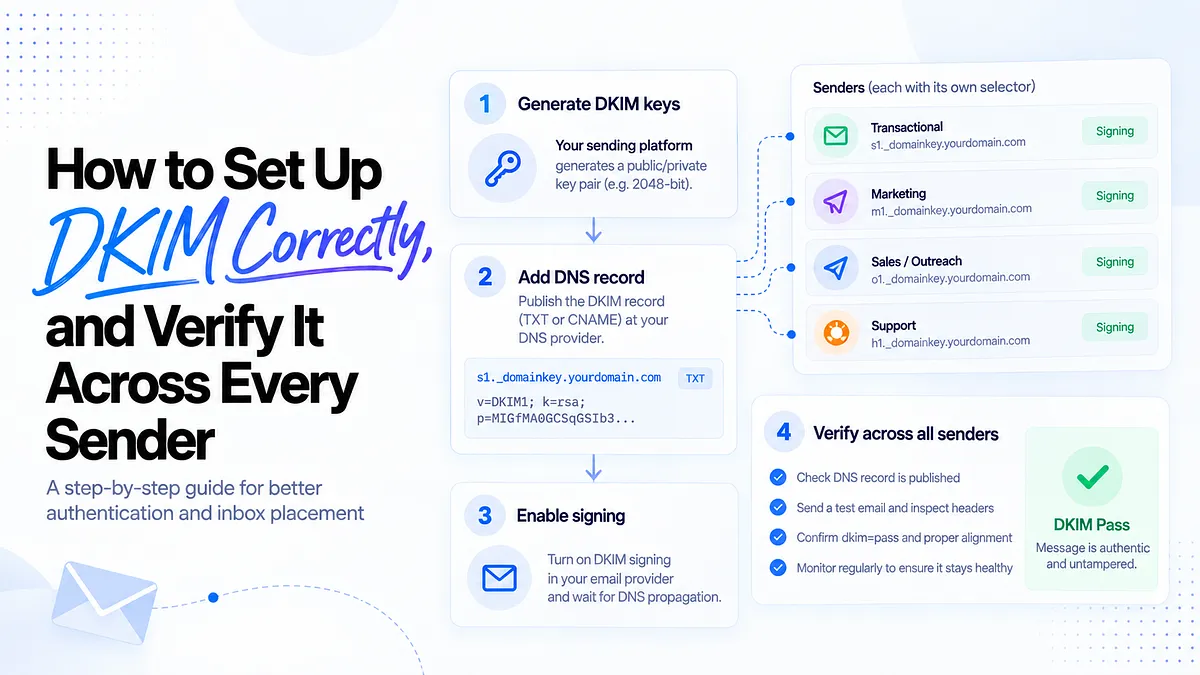
Most DKIM guides stop the moment the record turns green. But "DKIM passes" and "DKIM is working across every send" are two very different things. If you're a marketer or operator running high-volume campaigns, a misconfigured selector or a subdomain that quietly stops signing can tank inbox placement long before anyone notices.
This guide walks through setting up DKIM correctly across any DNS or email provider, then shows you how to verify signing, alignment, and selector health so authentication holds up in production, not just in a test. It's written from a deliverability practitioner's seat, where the real question isn't "did DKIM pass?" but "is every message from every sender authenticating the way I expect?"
What DKIM Is and Why It Matters for Deliverability
DKIM (DomainKeys Identified Mail) is a cryptographic signature attached to every message you send. It lets receiving servers verify two things: the message genuinely came from your domain, and it wasn't altered in transit. Gmail, Outlook, and Yahoo check that signature on every message before deciding where your mail lands.
The reason DKIM deserves more attention than a setup checkbox: it does more than produce a pass result. DKIM underpins DMARC alignment, the mechanism that connects your authentication to the From address your recipient actually sees. Since 2024, Google and Yahoo require bulk senders to authenticate with SPF, DKIM, and DMARC, which means DKIM is no longer optional hygiene for anyone sending at volume. And beyond compliance, a domain that signs consistently builds trust with every send, while a domain whose signing flickers erodes it.
One more reason to care that most guides skip: email spoofing has grown sharply in recent years (increases around 341% have been reported), and DKIM is one of the mechanisms that makes your domain harder to impersonate. Not a reason to panic. A reason to set it up properly and keep it working.
How DKIM Actually Works (Public Key, Private Key, Signature)
The mechanics take one paragraph and pay off through the whole setup.
Your sending system holds a private key and uses it to sign every outbound message, producing the DKIM-Signature header. The matching public key is published in your DNS, where any receiving server can fetch it. When your message arrives, the receiver reads the signature header, looks up your public key, and checks the math. If the signature validates, the message is authentic and untampered: dkim=pass.
The piece that confuses people is the selector. A domain can hold many DKIM keys at once, so each key gets a name. The signature header carries that name (the s= field) alongside your domain (the d= field), and the receiver combines them to find the right key: selector._domainkey.yourdomain.com. Selectors are what make multi-platform sending possible: your marketing ESP signs with one selector, your transactional service with another, each resolving to its own key, all on one domain. They're also what makes zero-downtime key rotation work, which comes up later.
Hold onto that lookup path. Nearly every DKIM failure is a break somewhere along it.
Your Pre-Flight DKIM Checklist (Do This Before You Touch DNS)
Most failed DKIM setups fail before the record is ever created, because something on this list was missing. Ten minutes here prevents most of the troubleshooting later:
- Domain confirmed. You know exactly which domain (or subdomain) this sender will sign with, and it matches the From address your recipients will see.
- DNS access in hand. You can log into the DNS host for that domain, or you know who can and how long their change process takes. DKIM setups stall for days on this alone.
- Selector strategy decided. If your platform lets you choose selectors, pick names that encode meaning: platform, stream, environment. s1-marketing beats a random string when you're diagnosing a failure across eight senders at 2 a.m.
- Current SPF and DMARC status known. Check what's already published. A domain with an enforced DMARC policy needs more care during setup than a domain at monitoring stage, because a misstep affects live filtering decisions.
- Every sending source inventoried. List every platform that sends as this domain: marketing, transactional, product, outbound, support, billing. Each one needs its own DKIM configuration, and the ones you forget are the ones that fail DMARC later.
That last item is the one that separates a clean rollout from a months-long cleanup. You cannot authenticate senders you don't know about.
Generating Your DKIM Key Pair
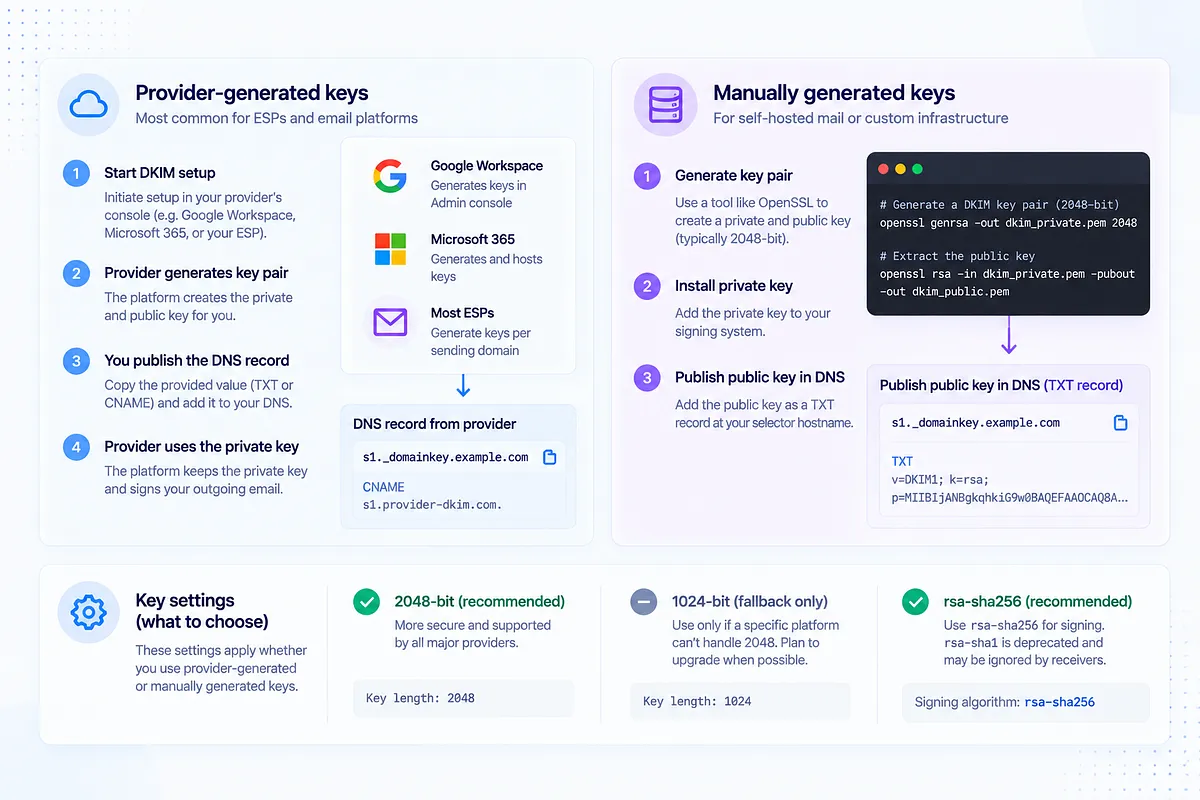
Where the key comes from depends on your environment.
Provider-generated keys are the common case. Google Workspace generates the pair when you initiate DKIM setup in the Admin console. Microsoft 365 generates and hosts keys on its own infrastructure. Most ESPs generate keys per sending domain when you add one. In every case, the platform keeps the private key and hands you something to publish in DNS.
Manually generated keys apply when you self-host mail or run your own signing infrastructure. You generate the pair yourself (typically with OpenSSL), install the private key on the signing system, and publish the public key in DNS.
Either way, one decision matters: key length. Choose 2048-bit as the modern default. It's meaningfully more secure than 1024-bit, and every major provider supports it. Use 1024-bit only as a fallback when a specific platform can't handle 2048, and note it for upgrade when the platform catches up. Whatever the length, the signing algorithm should be rsa-sha256; rsa-sha1 is deprecated and some receivers ignore it entirely.
Creating the DKIM DNS Record (TXT vs CNAME)
Here's the distinction that derails more setups than any other: DKIM records come in two publishing patterns, and your provider decides which one you get.
TXT records publish the public key directly in your DNS. Google Workspace works this way: you get a value starting v=DKIM1; k=rsa; p=... and paste it into a TXT record at the selector hostname. You can see the key in your own zone, and you (or your provider's regeneration flow) own its lifecycle.
CNAME records publish a pointer instead. Microsoft 365 and many ESPs work this way: the record at your selector hostname points to a key hosted on the provider's DNS, which lets them rotate keys without you touching anything. Your zone shows a delegation, not a key.
Three fields you must get exactly right in either pattern:
- The hostname: selector._domainkey.yourdomain.com. The _domainkey label is required, underscore included.
- The record type: whichever your provider specifies. Publishing a TXT where a CNAME belongs (or both at the same hostname) breaks resolution.
- The value: copied exactly from your provider. Truncated keys and hand-typed CNAME targets are silent killers; a single dropped character invalidates the whole record.
Selectors can run up to 62 characters, so descriptive names cost you nothing.
Adding the DKIM Record at Your DNS Provider
The workflow is the same across registrars and DNS hosts (Cloudflare, GoDaddy, Namecheap, Route 53, and the rest):
- Open DNS management for the sending domain.
- Create a new record of the type your email provider specified.
- Enter the host, the value, and a TTL of 3600 seconds.
- Save, then verify the published record from outside, not just the form you filled in.
The gotchas live in step 3, and they're provider-console quirks rather than DKIM problems:
- Auto-appended domain suffixes. Many consoles append your domain to whatever you type in the host field. If the console expects s1._domainkey and you enter the full hostname, you've published s1._domainkey.example.com.example.com, which resolves to nothing. Check what was saved, not what you typed.
- Trailing dots on CNAME targets. Some consoles require the trailing dot to mark a fully qualified name; others add it silently. Get it wrong in a literal-minded console and your target concatenates with your own domain.
- TTL. Set 3600 seconds (one hour). Very low TTLs increase lookup pressure and can surface as temporary DKIM errors when resolvers time out.
- Proxy settings. On Cloudflare, authentication records must be DNS-only (grey cloud). A proxied _domainkey hostname breaks the lookup.
None of these produce an error when you save. All of them produce a DKIM failure when a receiver tries to verify.
Provider-Specific Setup: Google Workspace, Microsoft 365, and Standalone ESPs
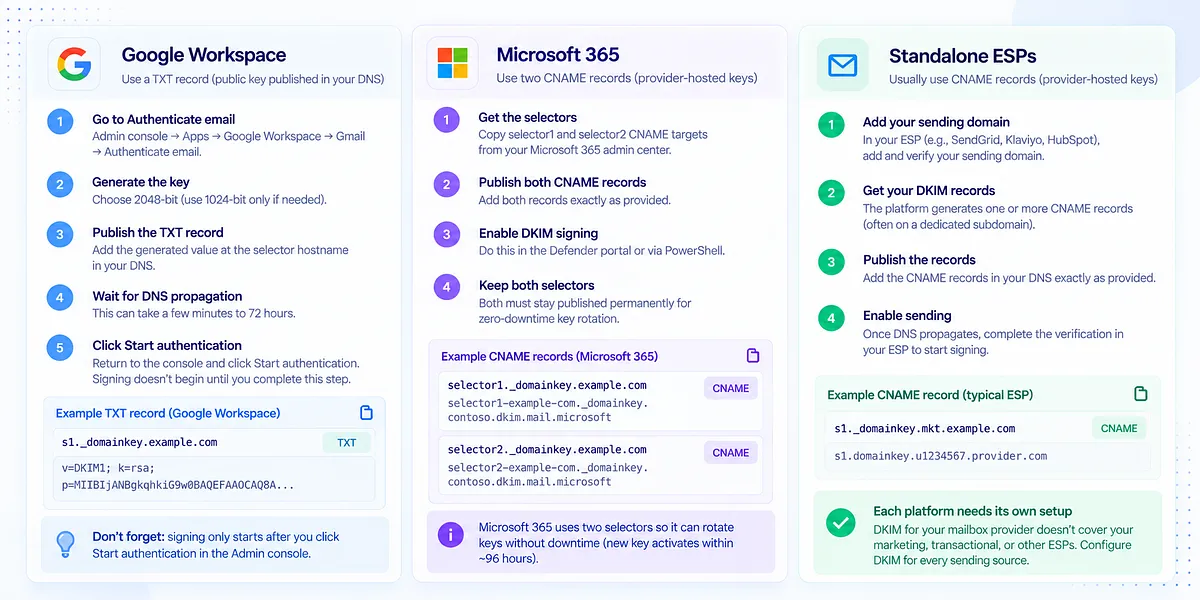
The cross-provider workflow above covers most of the job. Here's what's specific to the three environments most teams run.
Google Workspace. In the Admin console, go to Apps, then Google Workspace, then Gmail, then Authenticate email. Generate the key (choose 2048-bit; drop to 1024 only if your DNS host can't handle the longer TXT value), publish the generated value as a TXT record at the selector hostname Google gives you, wait for propagation, then return to the console and click Start authentication. Signing doesn't begin until you complete that last step, which is the step teams most often forget.
Microsoft 365. M365 uses CNAME delegation with two selectors, selector1 and selector2, so Microsoft can rotate keys with zero downtime. Copy both CNAME targets exactly from your admin center (the targets encode your tenant details, so never construct them from a template), publish both, then enable signing in the Defender portal or via PowerShell. Until you enable DKIM on your custom domain, M365 signs with its default onmicrosoft.com domain, which authenticates the mail but does nothing for your own domain's alignment. Both selectors must stay published permanently; the second one earns its keep at rotation time.
Standalone ESPs. Sending platforms (marketing, transactional, outreach) each generate DKIM records when you add a sending domain, most commonly as CNAMEs, often on a dedicated subdomain. The key difference from mailbox-provider DKIM: ESP DKIM authenticates your sending stream through that platform, and each platform needs its own setup. Configuring DKIM for your mailbox provider does nothing for the marketing ESP sending alongside it. Work through your sending-source inventory and configure each one.
Enabling DKIM Signing and Waiting for DNS Propagation
Publishing the record and turning on signing are separate steps in most environments, and the order matters.
Publish first. Then wait. DNS propagation ranges from minutes to 72 hours depending on your DNS host and the TTLs involved; most changes are visible within a few hours. Enable signing only after the record resolves publicly, because a platform that starts signing before receivers can fetch the key produces verification failures on real mail, and a verification check run too early produces a false failure that sends you troubleshooting a record that was fine all along.
The patient version of the sequence: publish, confirm the record resolves with an external lookup, enable signing, then verify with real mail. Ten extra minutes of patience here saves an afternoon of chasing ghosts.
How to Verify Your DKIM Setup
Verification has two layers, and a green check on one says nothing about the other.
Layer one: manual header inspection. Send a message from the configured platform to a mailbox you control at Gmail or Outlook. Open the raw headers (Show original in Gmail) and check two things. First, the DKIM-Signature header exists and its s= matches your selector and its d= matches your domain. Second, the Authentication-Results line shows dkim=pass with your domain named. If the signature shows the provider's domain instead of yours, the record may be fine but the platform is signing with its default identity, and your domain gets no alignment credit.
Layer two: tooling. A DKIM lookup confirms the record resolves correctly from public DNS, catching the hostname and formatting errors that console previews hide. A live send test goes further: it confirms that real mail signs, aligns, and lands. This is where you should test your DKIM record after setup: Mailora's deliverability test reads the DNS record, the live signature, the DMARC alignment, and the actual inbox placement in one pass, so you're verifying the outcome rather than one link in the chain.
Run both layers per sender, not once per domain. Five platforms sending as your domain means five verifications. And if a check fails, our guide to how to fix DKIM not verified walks the diagnosis in order.
Common DKIM Setup Problems (Troubleshoot by Symptom)
Troubleshooting goes faster when you start from the symptom instead of re-running the setup steps.
DKIM passes but DMARC still fails. This is alignment, not signing. The signature validates, but its d= domain doesn't match your From domain, usually because the platform signs with its own domain by default. Fix: configure custom domain signing in the platform so d= becomes your domain.
The selector exists but mail arrives unsigned. DNS is fine; signing was never enabled, or the platform is signing a different stream. Fix: check the enable step (Google's Start authentication, M365's enable action, the ESP's domain verification), and confirm which From addresses the signing config covers.
Record published but not detected. Almost always propagation or formatting. Fix: wait out propagation (up to 72 hours), then query the exact hostname externally. If it returns nothing, look for the auto-appended-suffix problem or a truncated value.
One sending source passes while another fails. Each platform signs independently. The failing one either lacks its own DKIM setup or its selector record broke. Fix: treat each source as its own setup, per your inventory.
Root domain passes but a subdomain fails. Subdomain sending needs its own DKIM consideration; a key published at the root doesn't automatically cover mail signed as the subdomain. Fix: publish selectors for the subdomain the platform actually signs with, and confirm alignment against the From address in use.
The pattern across all five: the failure names the layer. Signature present but misaligned is a platform config problem. No signature is an enablement problem. No record resolving is a DNS problem. Diagnose in that order and you'll rarely touch the wrong system.
What to Do After DKIM Is Set Up: Ongoing Monitoring
Here's the part the setup guides don't tell you: the green check certifies a moment, and your sending stack won't hold still for it.
Selectors change when platforms migrate infrastructure. ESPs update their signing configurations. Keys rotate, sometimes on schedules you don't control. New sending sources appear when someone in sales connects a tool. DNS cleanups delete records nobody recognized. Every one of these can take a passing DKIM setup to a failing one without a single alert firing, because nothing in the chain announces its own breakage. The first visible symptom is usually engagement drifting down, and by then the authentication has been failing for weeks.
A working cadence: weekly, review authentication pass rates per sending source and check that every known selector still resolves; monthly, reconcile your sending-source inventory against what's actually sending as your domain (DMARC reports tell you this), and confirm no new unaligned source has appeared.
The manual version of that cadence survives about three weeks at a busy team, which is why it belongs under continuous monitoring instead. Mailora monitors DKIM, SPF, and DMARC over time: per-domain, per-selector health, pass-rate trends per sending source, and alerts when a selector stops resolving or a source starts failing, so a broken chain reaches you as a notification the day it breaks instead of a mystery a month later. One-time verification tells you the setup was right. Continuous verification tells you it still is, which is the version that protects revenue.
Managing DKIM Across Multiple Domains, Subdomains, and Senders
For a team of any scale, DKIM stops being a record and becomes a portfolio, and the structure of that portfolio is a business decision.
Main domain vs. marketing subdomain. The standard architecture signs bulk and marketing mail from a dedicated subdomain (marketing.example.com) with its own selectors, keeping its reputation and its keys separate from the root domain that carries transactional mail. A rough week in the marketing stream stays contained.
ESP-specific subdomains. Many platforms provision their own sending subdomain per tool. That's fine, and often preferable, as long as each one is inventoried, aligned, and monitored. The subdomains that hurt you are the ones nobody remembers exist.
Agency-managed sending. Agencies running DKIM across dozens or hundreds of client domains need two things the single-domain operator doesn't: a selector naming convention that encodes client and platform, and a centralized health view. Reading DNS by hand across two hundred domains isn't an operating model.
High-volume segmentation. At serious volume, streams get their own domains or subdomains precisely so authentication and reputation can be managed per stream. That only works if alignment holds on every one of them; a segmentation strategy with one unaligned stream is a reputation leak wearing an architecture diagram.
The unifying rule: alignment must hold across everything that sends. Every domain, every subdomain, every platform. One inventory, one convention, one view of health.
DKIM Key Rotation and Maintenance
DKIM keys are credentials, and credentials age. The longer a key lives, the larger the window for compromise, and a leaked private key means someone else can sign mail as your domain until you rotate.
Rotation is where the two-selector pattern earns its place. With two selectors published, you can stage a new key on the idle selector, cut signing over to it, and retire the old key, all with zero downtime, because both keys resolve throughout the transition. Microsoft 365 automates exactly this: its rotation cycles activate the new key within roughly 96 hours, swapping between selector1 and selector2 without any DNS change on your side. Provider-hosted setups (CNAME delegation) generally rotate for you; self-hosted TXT setups put the schedule in your hands, and "never" is the schedule most teams accidentally choose.
A reasonable discipline: rotate managed keys on your provider's cycle and verify the rotation landed; rotate self-managed keys at least annually, immediately on any suspicion of compromise, and whenever staff with key access leave. And monitor through every rotation, because the silent failure mode is a rotation that half-completes: the provider activates a new key behind a selector that no longer resolves, and signing fails on a domain that looked healthy the day before. Rotation without verification is just scheduled risk.
DKIM, SPF, and DMARC: How They Work Together
DKIM is one leg of a three-part stack, and it's the stack, not any single protocol, that protects your deliverability.
SPF authorizes sending servers: a DNS record listing which infrastructure may send mail for your domain. DKIM proves message integrity and domain identity through the signature you've just set up. DMARC ties both to the From address your recipient sees, requiring that at least one of them passes with alignment, and tells receivers what to do when neither does.
Alignment is why DKIM alone isn't enough. A valid signature on the wrong domain, or an SPF pass on your ESP's bounce domain, produces green checks that do nothing for your DMARC evaluation. What actually protects reputation is the aligned pass: authentication that connects to your visible identity. DKIM tends to be the more durable alignment path because signatures survive forwarding while SPF breaks in transit, which is one more reason the setup you've just completed deserves to be done precisely.
From here, the logical next steps are confirming your SPF record covers every source in your inventory and progressing your DMARC policy as your authentication data earns it. The stack is finished when all three protocols agree about who you are, on every message, from every sender.
Start with ground truth: run your first deliverability test and see your DKIM signing, alignment, and inbox placement in one view, before your next major send.
FAQ
How long does DKIM take to work after I add the DNS record?
DNS propagation ranges from a few minutes to 72 hours, with most records resolving within a few hours. Signing begins only after two conditions are met: the record resolves publicly, and you've enabled signing in your email platform (Google's Start authentication step, M365's enable action, or your ESP's domain verification). Verify with an external DNS lookup before enabling, because checks run mid-propagation produce false failures.
What's the difference between a DKIM TXT record and a CNAME record?
A TXT record publishes the public key directly in your DNS; you can see the key in your zone and you own its lifecycle. A CNAME record points your selector hostname at a key hosted on your provider's DNS, which lets them rotate keys without you touching anything. Your provider decides which pattern you get: Google Workspace uses TXT, Microsoft 365 and many ESPs use CNAME. Both end in a receiving server reading a key; the difference is who hosts and rotates it.
Should I use a 1024-bit or 2048-bit DKIM key?
Choose 2048-bit. It's meaningfully more secure and supported by every major provider. Use 1024-bit only when a specific platform or DNS host can't accommodate the longer key, and treat that as temporary: note it for upgrade when support arrives. Whichever length you use, pair it with rotation, since key strength and key age are separate risks.
Why does my DKIM pass but DMARC still fails?
Because DMARC requires alignment, not just a valid signature. The domain in your DKIM signature (the d= field) must match your visible From domain. Platforms that sign with their own default domain produce technically valid signatures that earn you no alignment credit. The fix is configuring custom domain signing in that platform so the signature carries your domain, then re-verifying with a real message's headers.
How often should I rotate my DKIM keys?
Provider-hosted keys (CNAME setups) typically rotate automatically; Microsoft 365, for example, activates new keys within roughly 96 hours of a rotation using its two-selector swap. For self-managed keys, rotate at least annually, immediately on any suspected compromise, and when people with key access leave. Always verify signing after a rotation completes, because a rotation landing on a broken selector is one of the quietest ways DKIM fails in production.
Stay in the loop
Deliverability insights, product updates, and early access to new features. No spam, unsubscribe anytime.
By subscribing, you agree to our Privacy Policy. Unsubscribe anytime.