Key Takeaways
|
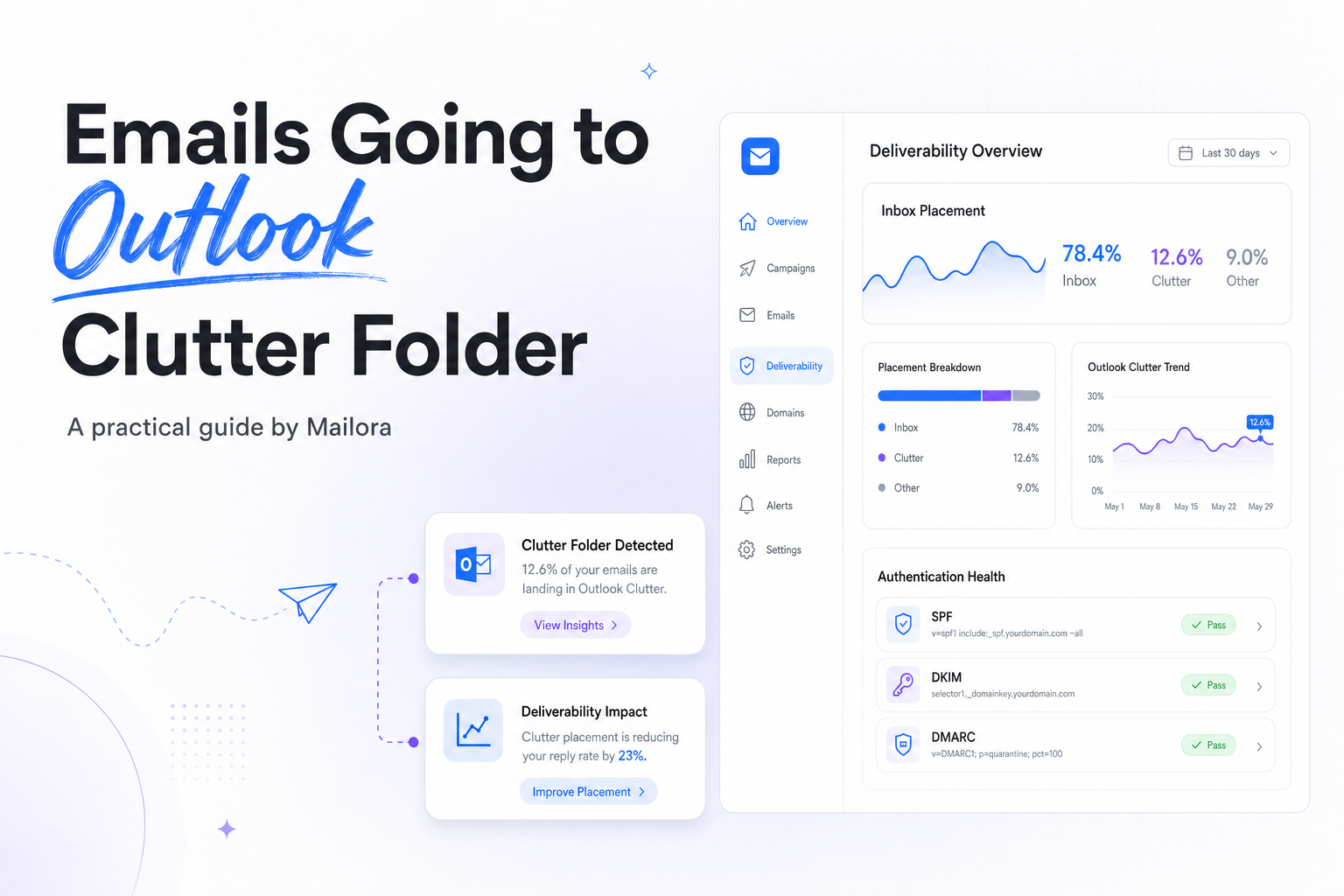
As of January 31, 2020, Microsoft retired Clutter for Exchange Online and shifted users to Focused Inbox, according to Microsoft. That matters because many teams still get reports that emails are going to the Outlook clutter folder, when the real issue is usually Focused Inbox, the Other tab, or a user rule quietly sorting mail away from attention.
For deliverability and lifecycle teams, that distinction changes the playbook. If the problem is mailbox-level prioritization, the fix is different from a sender reputation problem. You need to know whether Outlook is classifying your mail as low priority for that user, or whether Microsoft is distrusting the sender before the message even gets a fair read.
This is why the right question is not, "How do I beat Clutter?" It is, "Why is Outlook treating this mail as less important, and what signal do I need to improve?"
Is the Outlook Clutter folder still a real thing?
Usually, no. In current Microsoft 365 and Outlook.com environments, Clutter has been replaced by Focused Inbox. Users still use the word "clutter" because it describes the experience, mail that arrives, but not where they expect it.
That is an important diagnostic shortcut. If a contact says your campaign or lifecycle email went to the clutter folder, verify whether it actually landed in one of three places:
- Focused Inbox, Other tab, Outlook delivered the message, but did not consider it top-priority for that recipient.
- Junk Email, Microsoft treated the message as suspicious or unwanted.
- A folder or archive created by a rule, the mailbox owner or admin configured sorting behavior outside Microsoft's core filtering.
| Outlook behavior | Where the message lands | What it usually means | Who can change it fastest |
|---|---|---|---|
| Focused Inbox sorting | Other tab | Low personal relevance or weak engagement history | Recipient behavior and sender relevance |
| Spam filtering | Junk Email | Authentication, reputation, or complaint concerns | Sender and mail admin |
| Mailbox rule | Custom folder, archive, or sweep location | User or tenant-level sorting rule | Recipient or Microsoft 365 admin |
Why emails are going to Outlook clutter folder now
1. Outlook sees weak engagement signals
Focused Inbox is personal. If a recipient rarely opens, replies, moves, or stars your messages, Outlook can keep delivering them while still placing them somewhere less visible. This is common with newsletters, product updates, and sales sequences that are technically accepted but not clearly wanted.
For lifecycle teams, this is why segment-level engagement matters more than list-wide averages. A message that performs well in Gmail can still land in Outlook's Other tab if Microsoft sees a weaker user relationship for that specific audience.
2. A mailbox rule is doing the sorting
Some "clutter" complaints have nothing to do with sender quality. Users create rules, use Sweep, or inherit mailbox settings that move recurring mail out of the main inbox. In B2B environments, shared mailboxes and executive assistants can add even more routing logic.
If only a handful of Outlook recipients report the issue while your seed accounts and broader Microsoft audience look normal, suspect mailbox rules before you start rewriting content or changing infrastructure.
3. Your sender signals are acceptable, but not strong
Microsoft does not need to hard-block you for Outlook placement to get worse. If SPF passes but DKIM is missing, if DMARC exists but is not aligned, or if your complaint pattern looks noisy, Outlook can treat the mail as lower confidence. That often shows up as weaker inbox prominence before it shows up as outright junk placement.
This is where deliverability teams should separate acceptance from performance. "Delivered" is not the same as "seen."
4. Content and cadence are creating low-priority patterns
Outlook is sensitive to how repetitive, broad, and low-interaction a stream looks over time. Daily nurture touches to cold segments, generic B2B promos, and subject lines that read like notifications without delivering utility can teach Outlook that the mail is skippable.
If your recipients consistently leave messages unread, delete without opening, or never reply, Outlook has a reason to keep the mail out of the focused view.
How to diagnose the real Outlook clutter problem
Start with placement, not assumptions
Ask for a screenshot or headers from an affected recipient. "Outlook clutter folder" is often shorthand, and your next step depends on where the message actually landed. Other tab, Junk Email, quarantine, and a user rule all point to different causes.
Compare Microsoft 365 and Outlook.com behavior
Consumer Outlook.com and business Microsoft 365 mailboxes can behave differently enough that one test account is not enough. If your issue is concentrated in B2B, prioritize Microsoft 365 seed accounts and real customer domains over generic consumer testing.
Check message trace and authentication alignment
For business mailboxes, message trace tells you whether Microsoft accepted the mail cleanly, redirected it, or filtered it. Then validate SPF, DKIM, and DMARC alignment on the exact stream and domain that sent the campaign. Passing SPF alone does not make a mail stream trustworthy.
Look at audience quality and recent sending changes
If Outlook placement dropped after a list expansion, domain change, new IP, or more aggressive lifecycle cadence, the timing matters. A sudden increase in low-engagement recipients is often enough to shift how Microsoft prioritizes the mail, even when authentication remains intact.
How to fix emails going to Outlook clutter folder
Improve recipient-level relevance
For nurture, product, and promotional streams, send less to people who have stopped engaging. Outlook responds well when recipients consistently open, reply, move the mail to Focused, or add the sender to safe senders. Those are stronger importance signals than simply avoiding spammy wording.
- Suppress chronically inactive Outlook segments sooner.
- Separate high-intent transactional and lifecycle mail from broad promotional sends.
- Use recognizable from names and domains recipients already trust.
- Write subject lines that match the actual value of the message, not just the send objective.
Strengthen sender trust
Make sure the sending domain is consistently authenticated, aligned, and used predictably. If Outlook is wavering between accepting your mail and treating it as low confidence, tightening infrastructure can improve inbox prominence over time, not just reduce spam risk.
- Sign all streams with DKIM.
- Align DMARC with the visible from domain.
- Keep promotional and operational mail on clearly separated streams.
- Warm any new domain or IP gradually before scaling Microsoft-heavy volume.
Reduce signals that look disposable
Overly frequent, low-value, and broad sends teach Outlook that your messages can wait. This is a classic RevOps issue as much as a deliverability issue, because audience logic and lifecycle orchestration create the engagement pattern Microsoft sees.
If sales, marketing, and lifecycle teams are all touching the same contacts from adjacent domains, Microsoft may see a messy sender relationship. Clean governance usually helps more than one more subject line test.
Ask affected recipients to correct mailbox-level sorting
When the issue is clearly user-specific, the fix is local. Recipients can move your message from Other to Focused, create an allow rule, or remove an old sorting rule that is sending your mail somewhere else. That does not solve sender reputation issues, but it is the right remedy when only a few mailboxes are affected.
Related reading: icloud mail emails going to spam and microsoft 365 emails going to junk.
Run your first deliverability test with Mailora and see whether Outlook is signaling a sender problem or a mailbox-level sorting issue.
FAQs
Why do people still say Outlook Clutter if Microsoft removed it?
Because the experience feels the same. Most recipients use "clutter" to describe mail that bypasses the main inbox view, even though Outlook now mainly uses Focused Inbox and mailbox rules.
Does going to Outlook's Other tab mean I have a spam problem?
No. It usually means Outlook delivered the message but did not see it as important for that user. Junk placement is a stronger sign of trust or reputation trouble.
Can good authentication alone stop Outlook from treating mail like clutter?
No. SPF, DKIM, and DMARC are foundational, but engagement and relevance still influence whether a message reaches Focused or Other.
Why is this happening more in B2B than Gmail?
Many B2B recipients use Microsoft 365, shared inboxes, and admin-managed rules. That creates more mailbox-level sorting and different engagement patterns than you may see in consumer Gmail accounts.
What is the fastest way to confirm the cause?
Check the exact landing location, review headers or message trace, and compare affected mailboxes with healthy Microsoft test accounts. That tells you whether you are dealing with Focused Inbox, Junk, or a local rule.
Stay in the loop
Deliverability insights, product updates, and early access to new features. No spam, unsubscribe anytime.
By subscribing, you agree to our Privacy Policy. Unsubscribe anytime.